
1,359 features. Everything you reach for, built in.
LunoDB is the AI database client for Mac, Windows and Linux. The grid, the SQL editor, schema tools, graphs, backups and an AI that understands your data, across 23 databases, in one fast app.
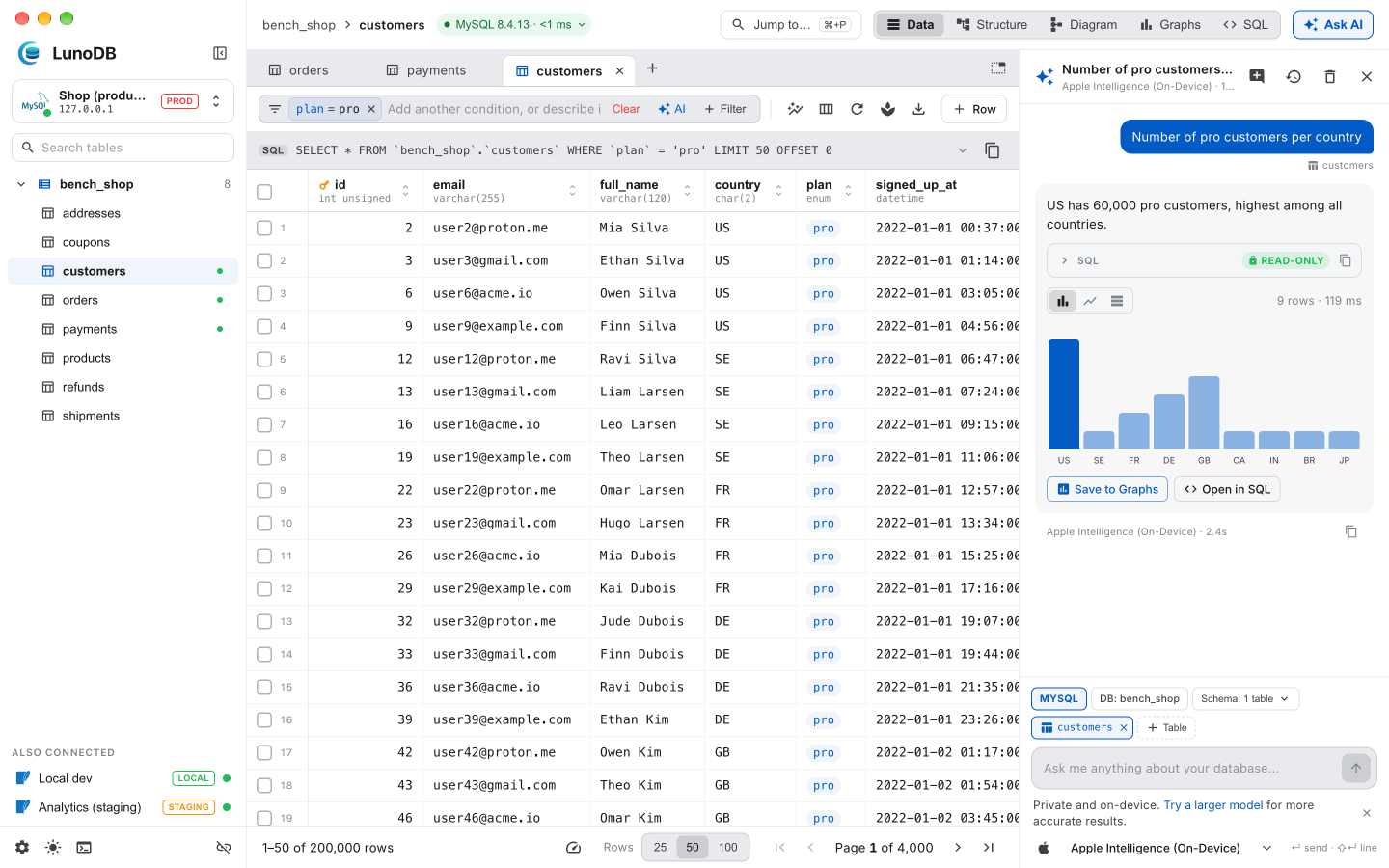
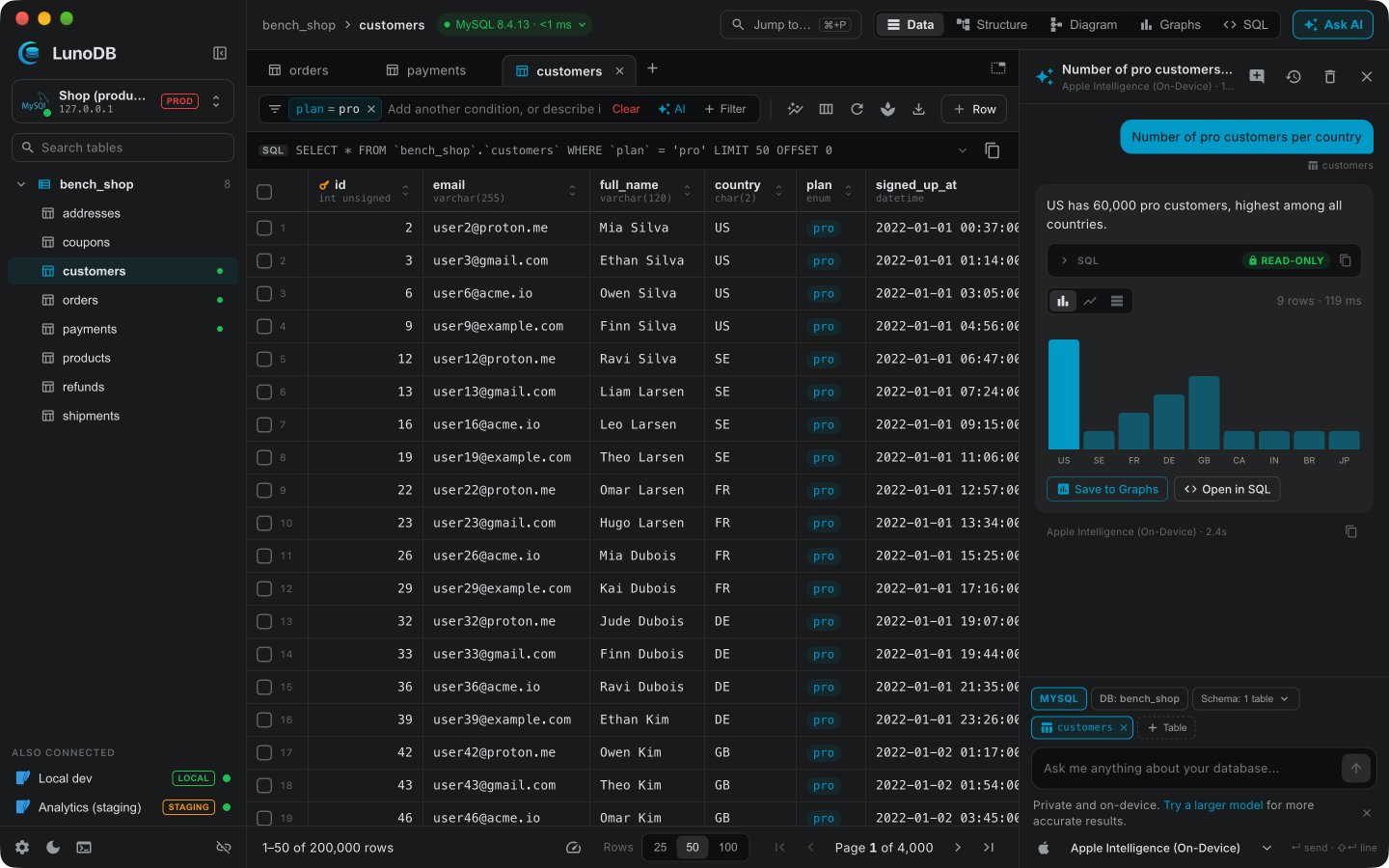
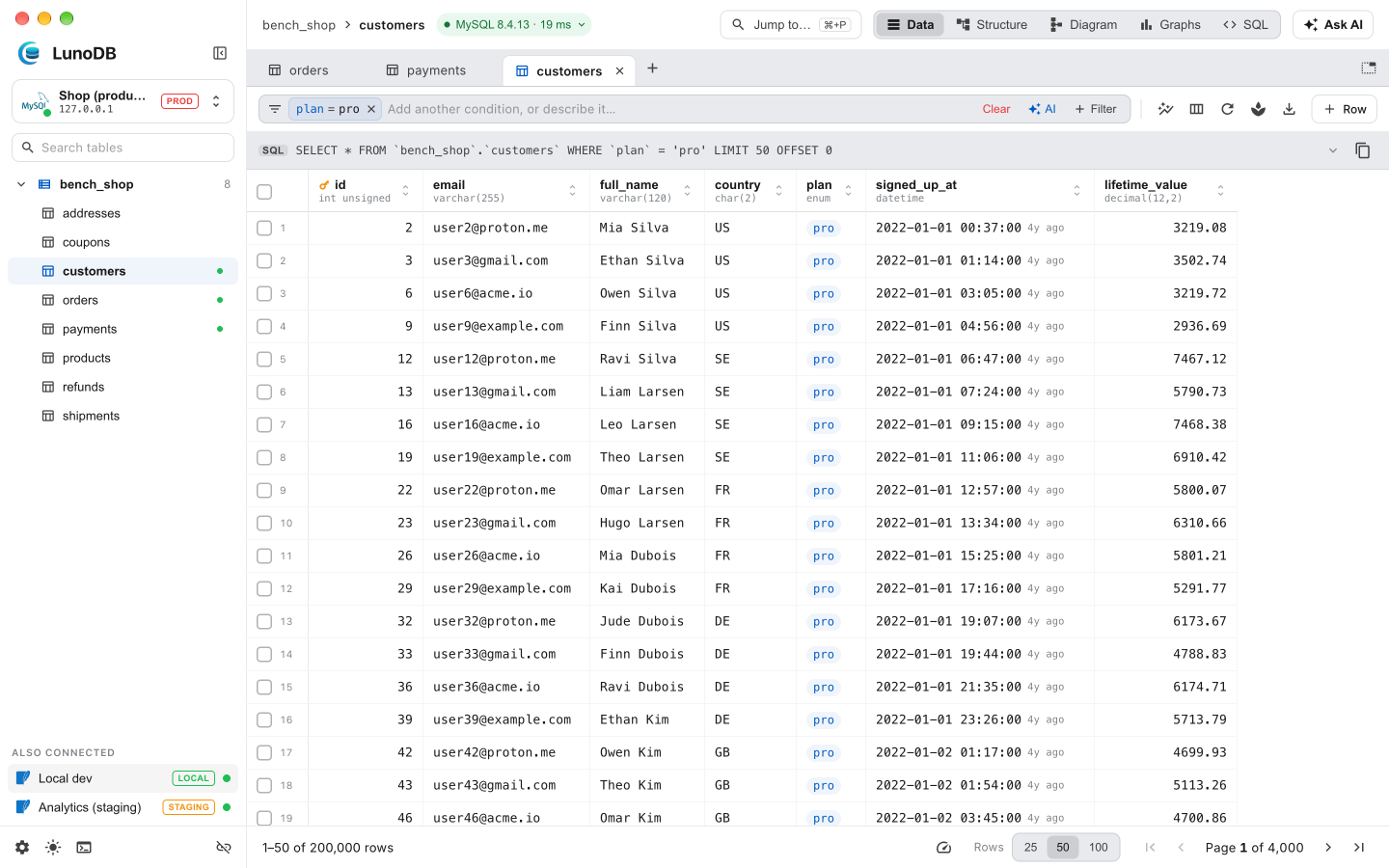
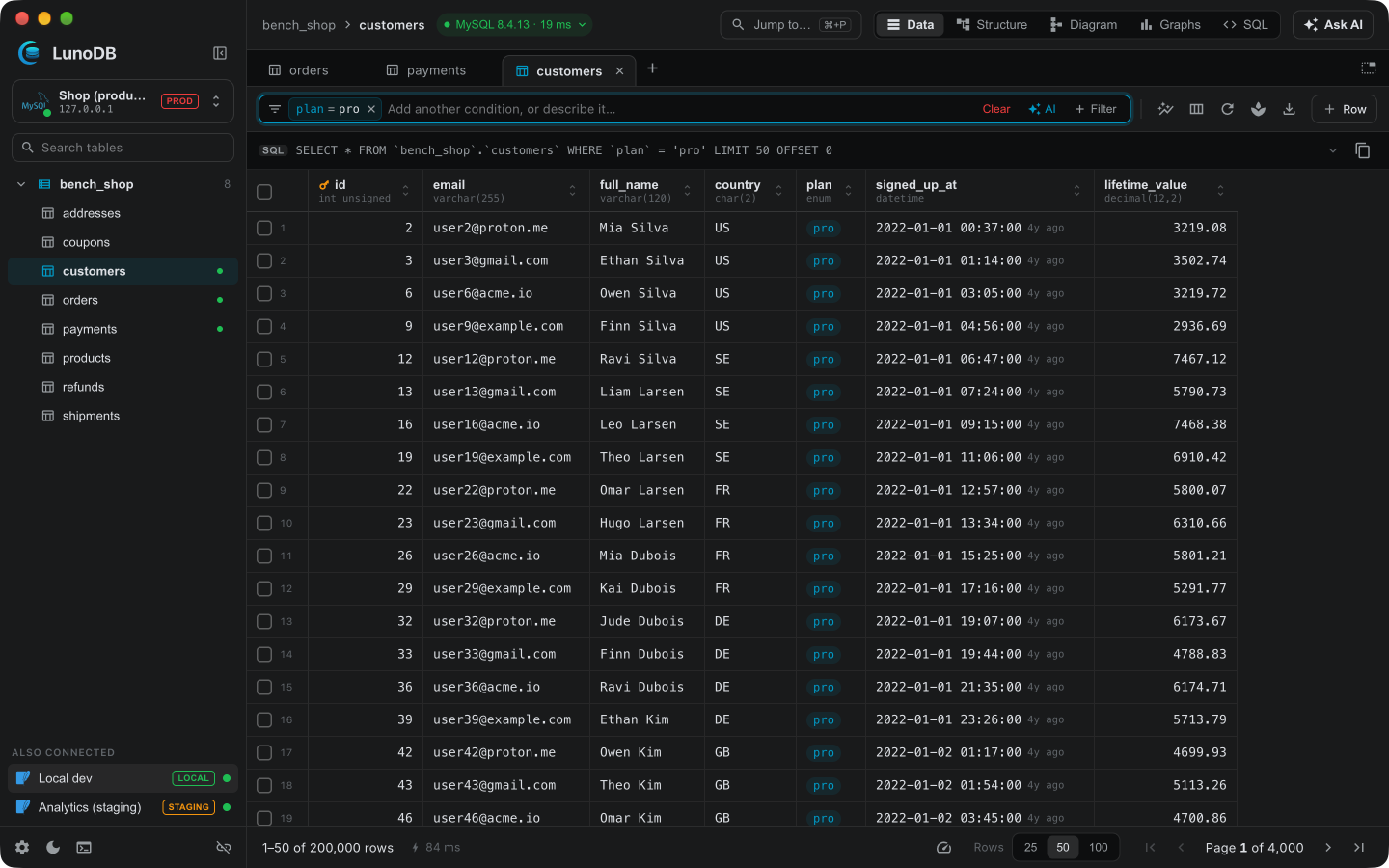
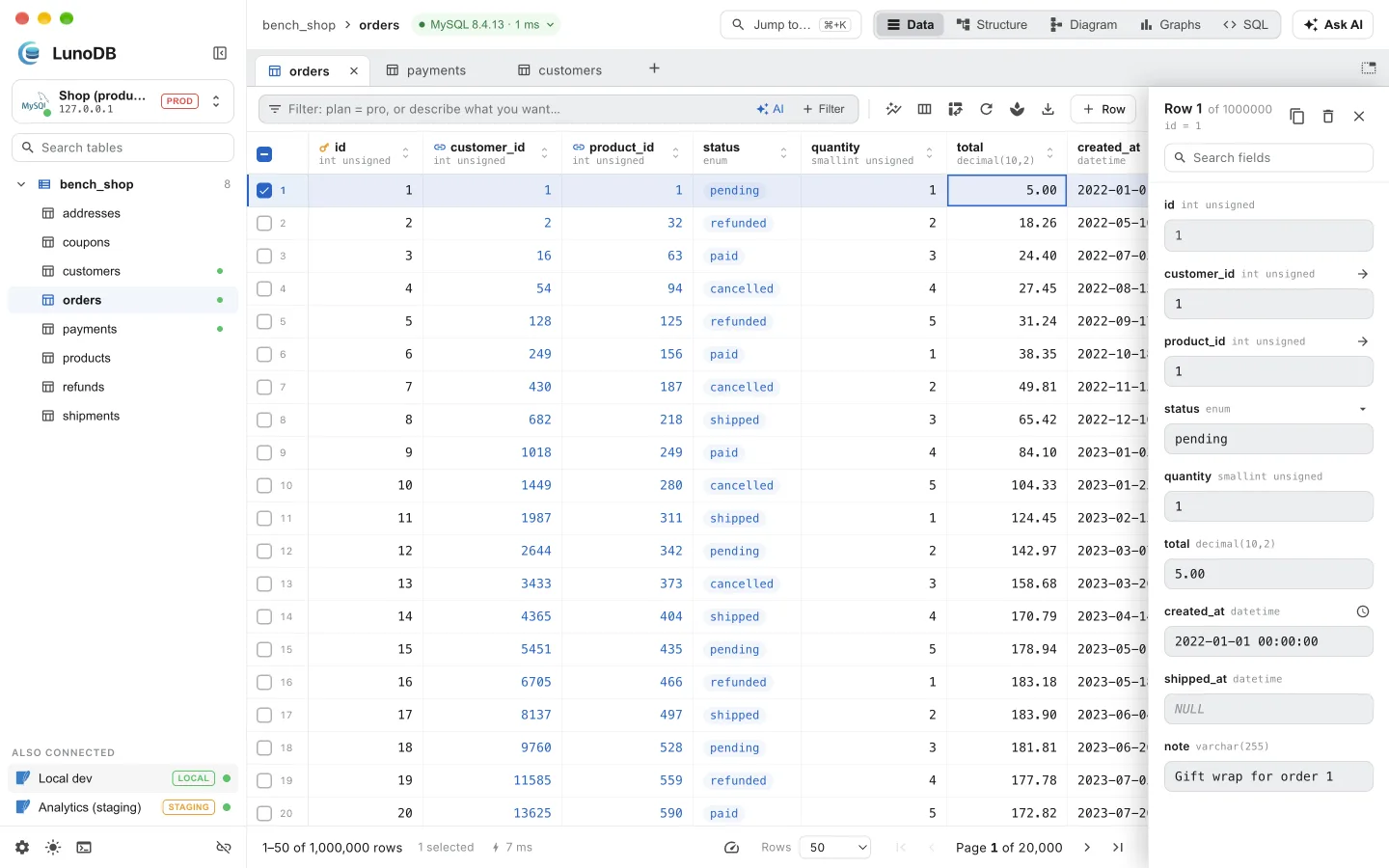
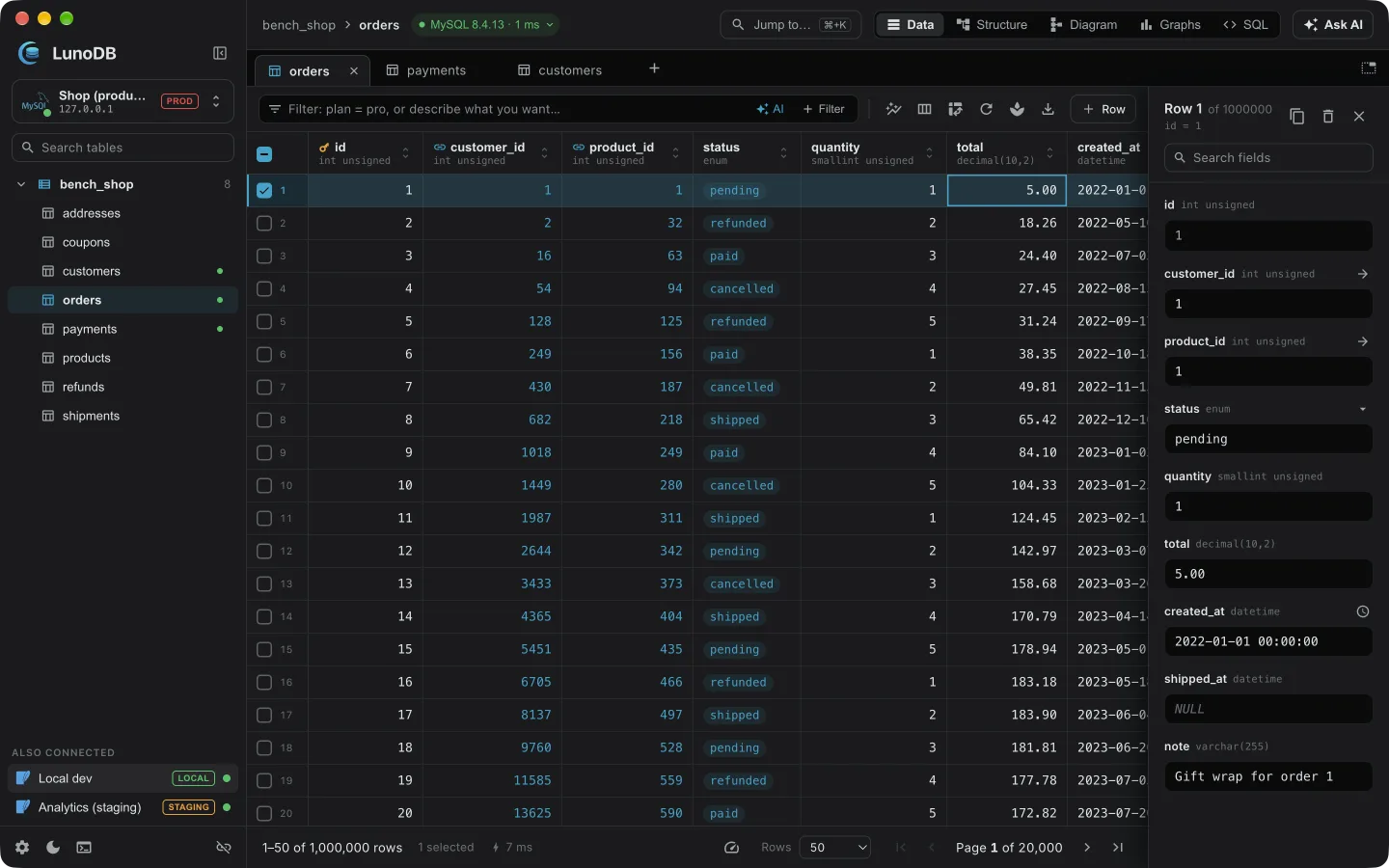
A spreadsheet that keeps up with 200,000 rows.
Scroll, filter, edit and copy without the lag. Type a filter, or just describe it, and LunoDB writes the condition for you.
- Describe a filter in plain English
- Sum, average, min and max of any cells you select
- Flip a row sideways to read one record at a time
- Dates read like people talk: “2y ago”, “in 3d”
Ask your database. Get a chart back.
Ask a question in plain English. LunoDB reads your tables, writes the SQL, runs it safely and shows you the answer, the query and a chart.
- Private, on-device AI with Apple Intelligence or Ollama
- Or bring Claude, GPT, Gemini, DeepSeek and more
- Answers run read-only by default
- Fix a failed query with one click
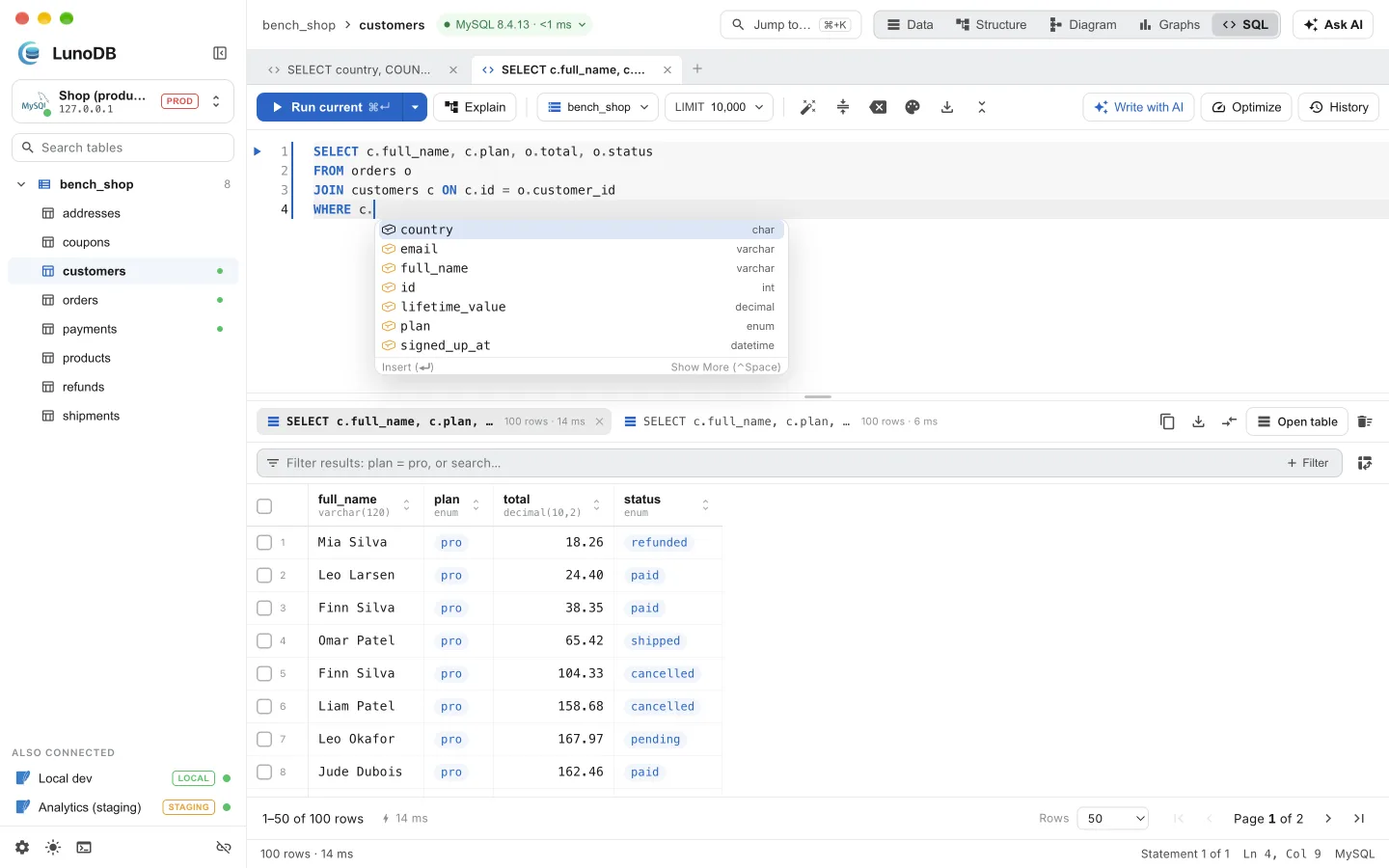
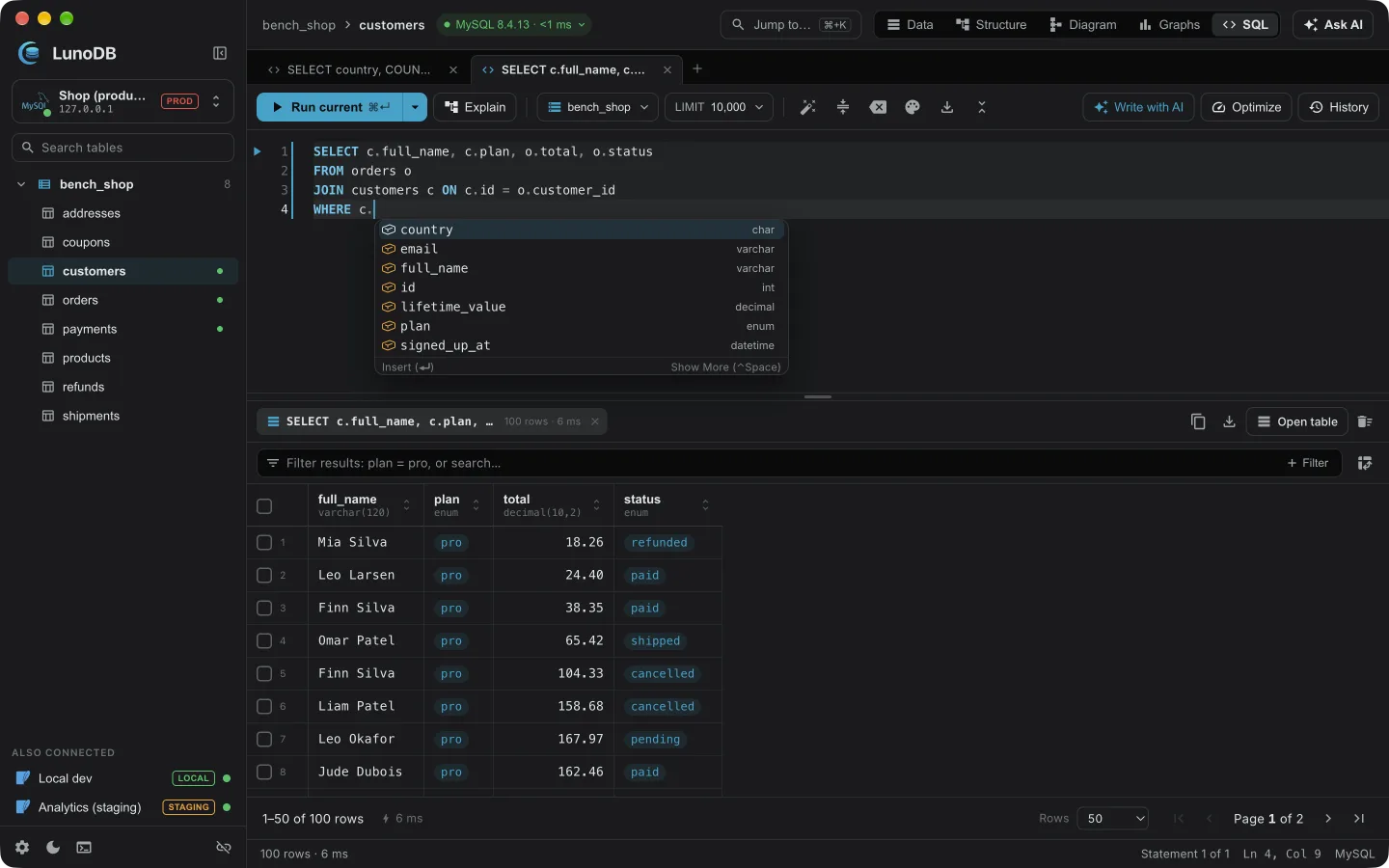
An editor that knows your schema.
Autocomplete that knows every table and column. Multiple cursors. Format with one key. And a safety net before anything touches production.
- Asks for :name and ? values before running
- Safe mode asks before changing production data
- Open a function or trigger and compare it with the server’s
- A live timer while long queries run
See the whole database. Change it safely.
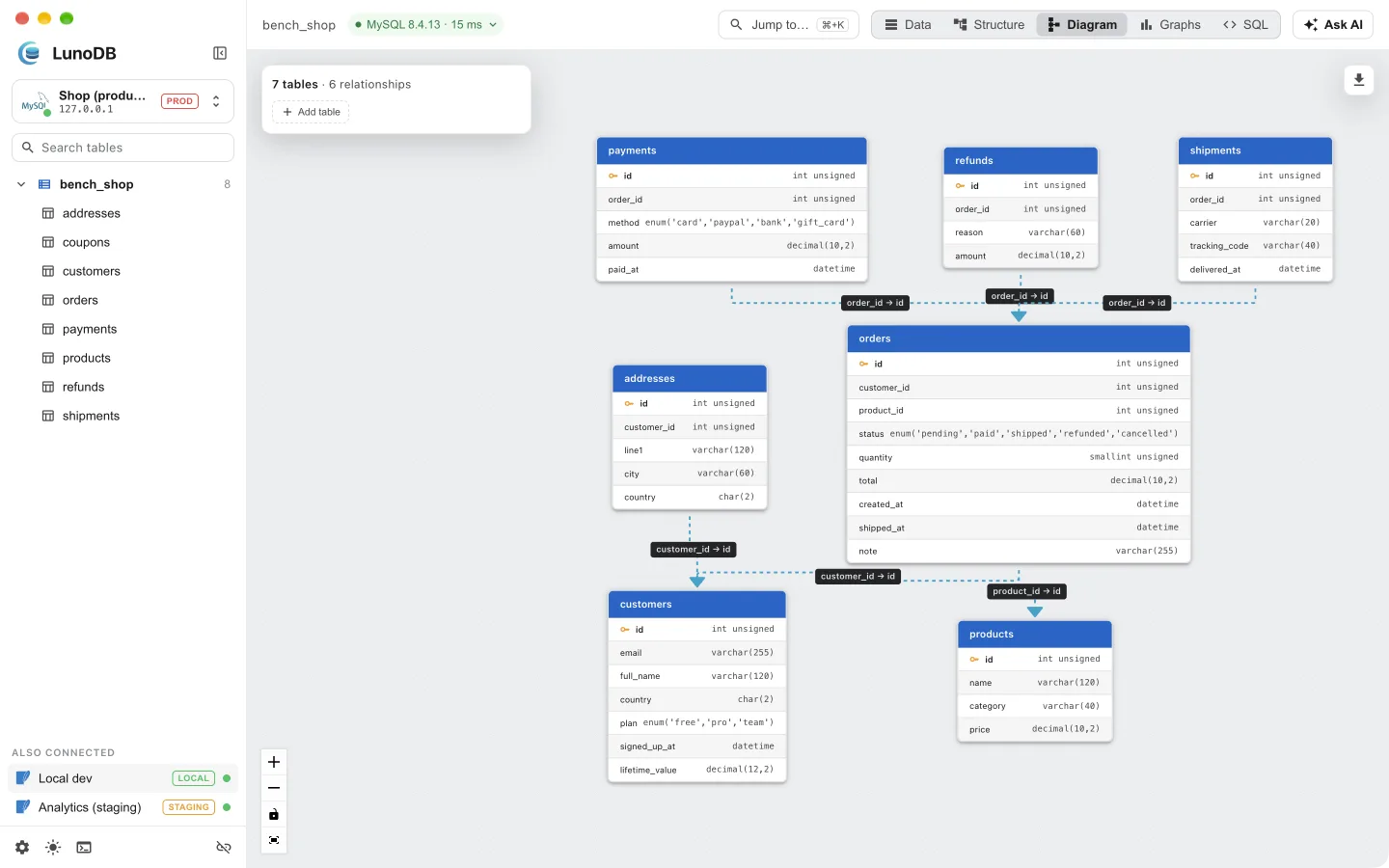
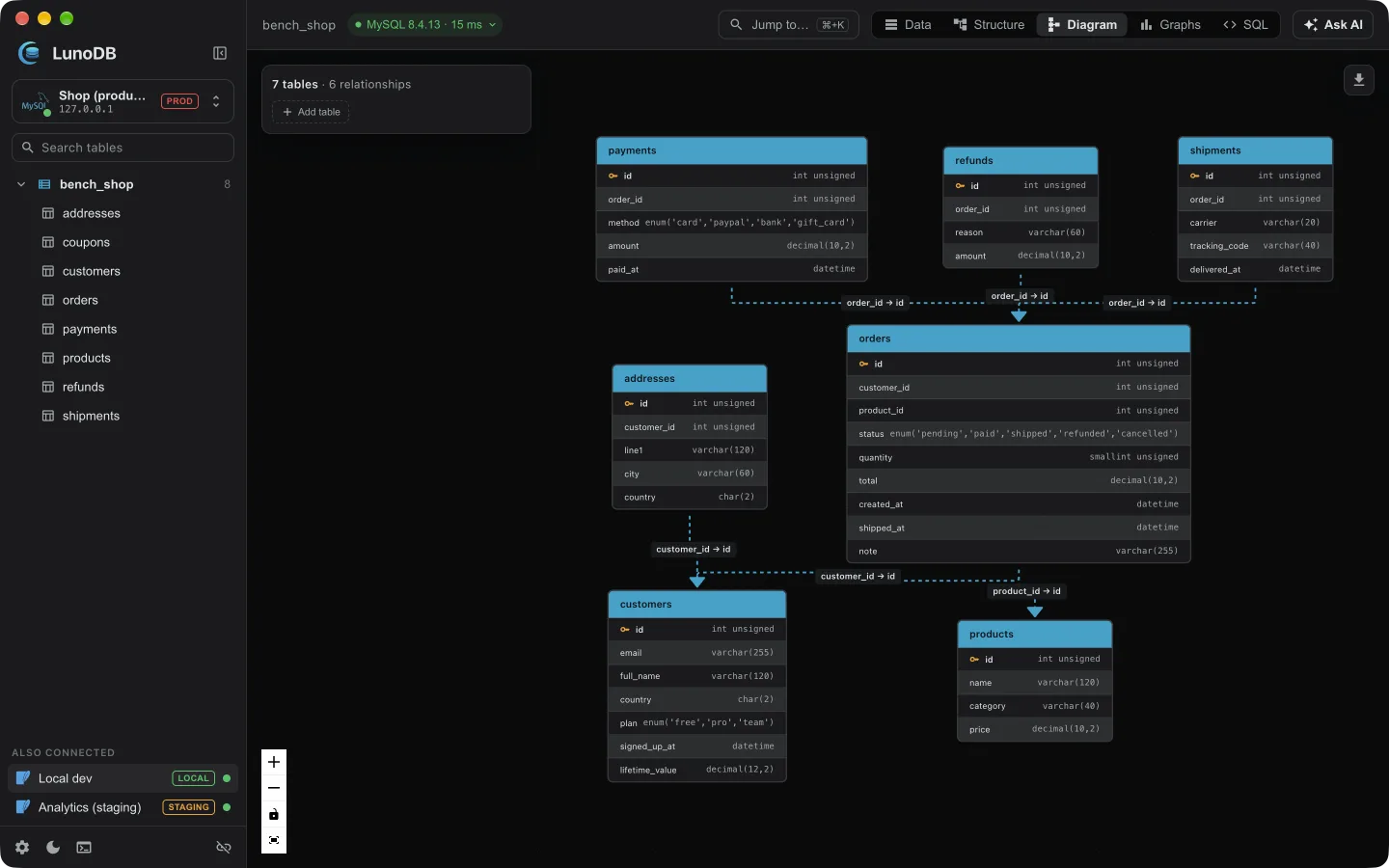
A live diagram of every table and key. Add columns, indexes and foreign keys with a preview of the SQL first. Compare two schemas and get the migration script.
- Preview the SQL before every change
- Compare schemas and see which changes lose data
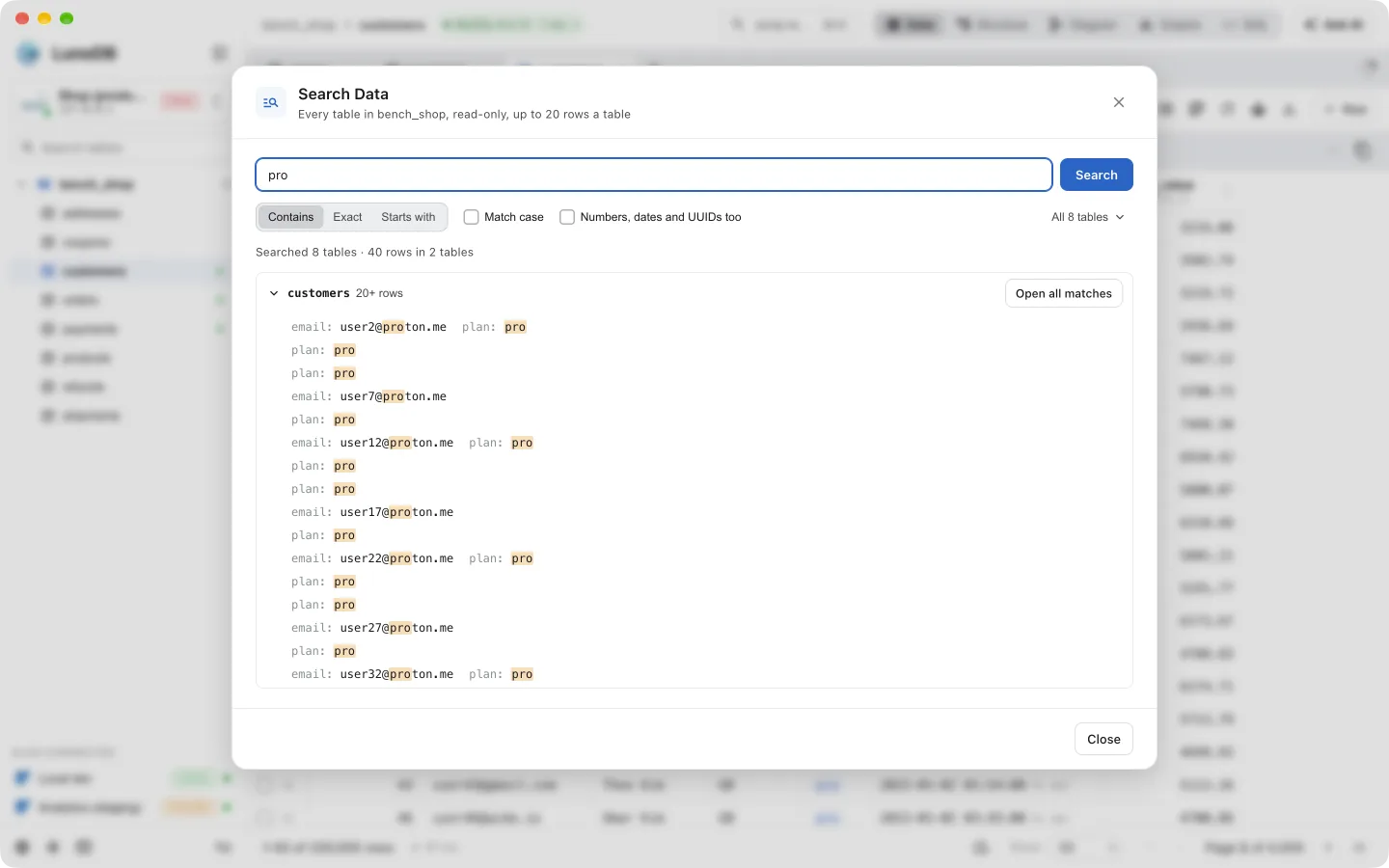
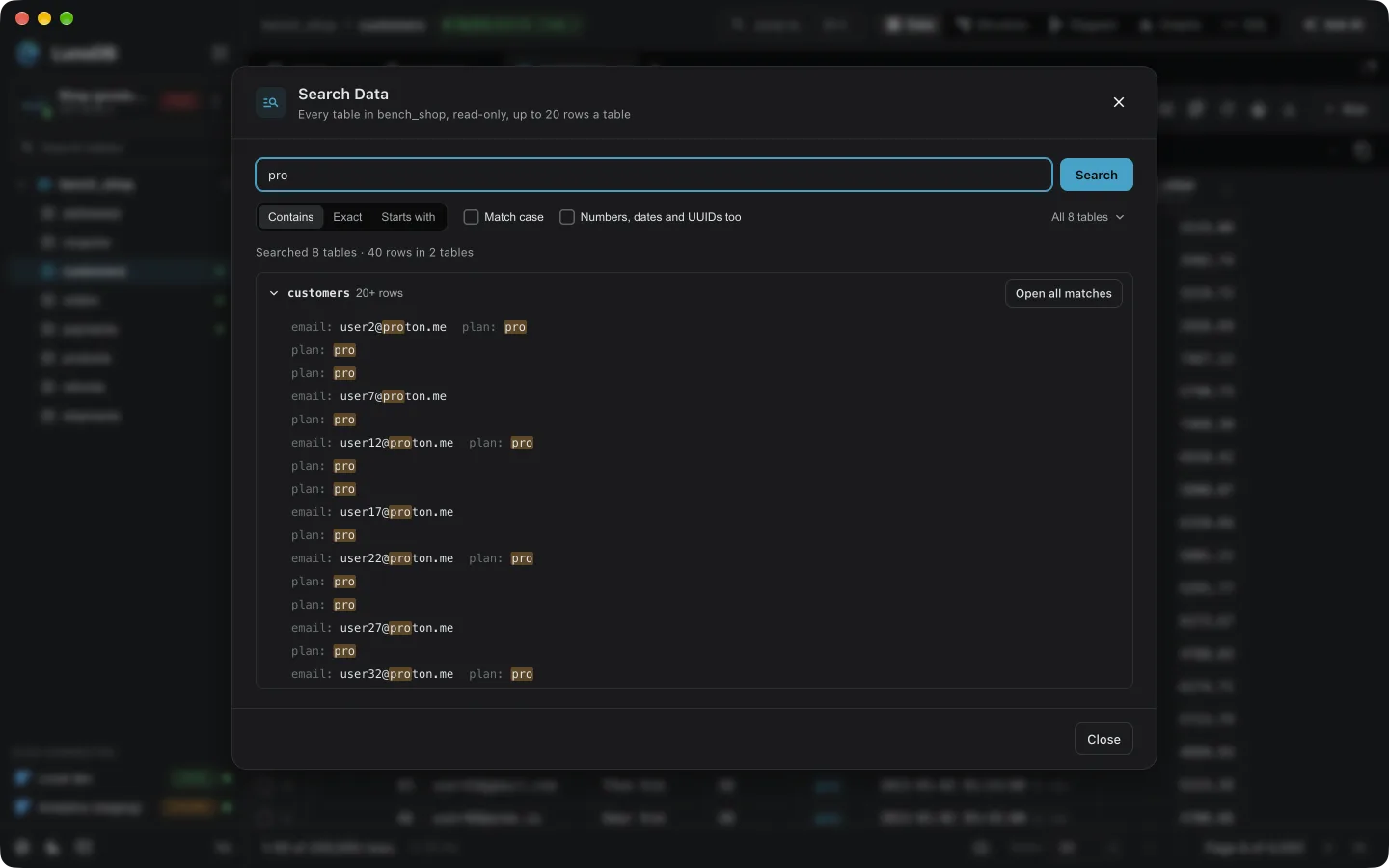
- Search for a value across every table at once
- Export the diagram as a PNG
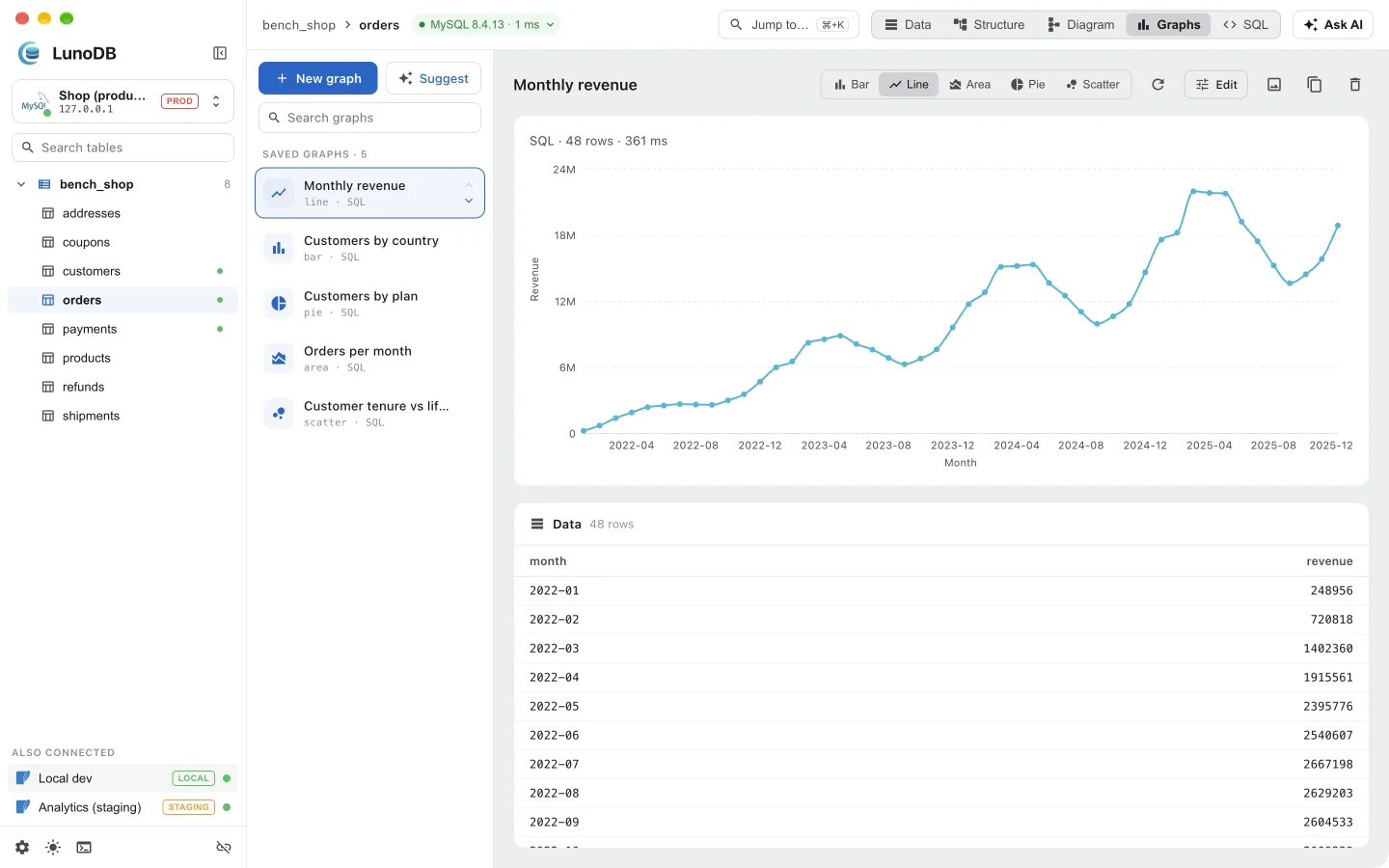
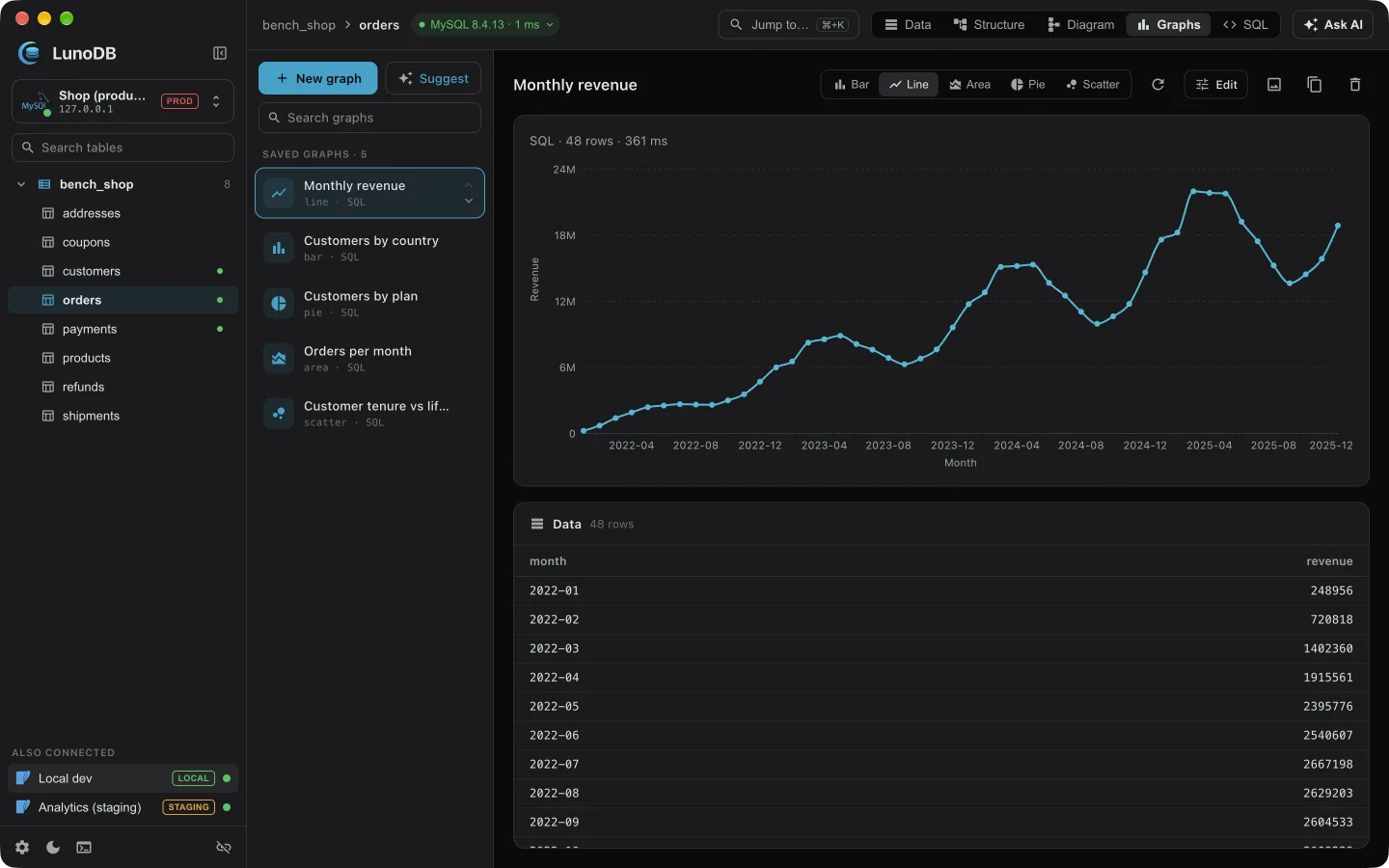
From query to chart in one click.
Line, bar, area, pie and scatter charts straight from your tables. Save them, search them, and see the numbers underneath.
- Save any AI answer as a graph
- Colors that stay readable in light and dark
- The data behind every chart, one scroll away
Move millions of rows. Never run out of memory.
CSV, JSON, SQL and Excel in and out, with a live preview, time-left estimates and no half-written files if you cancel.
- Preview a file as a table before you import
- Copy a database from one server to another, step by step
- Back up connections, graphs and saved queries, then drop the file to restore
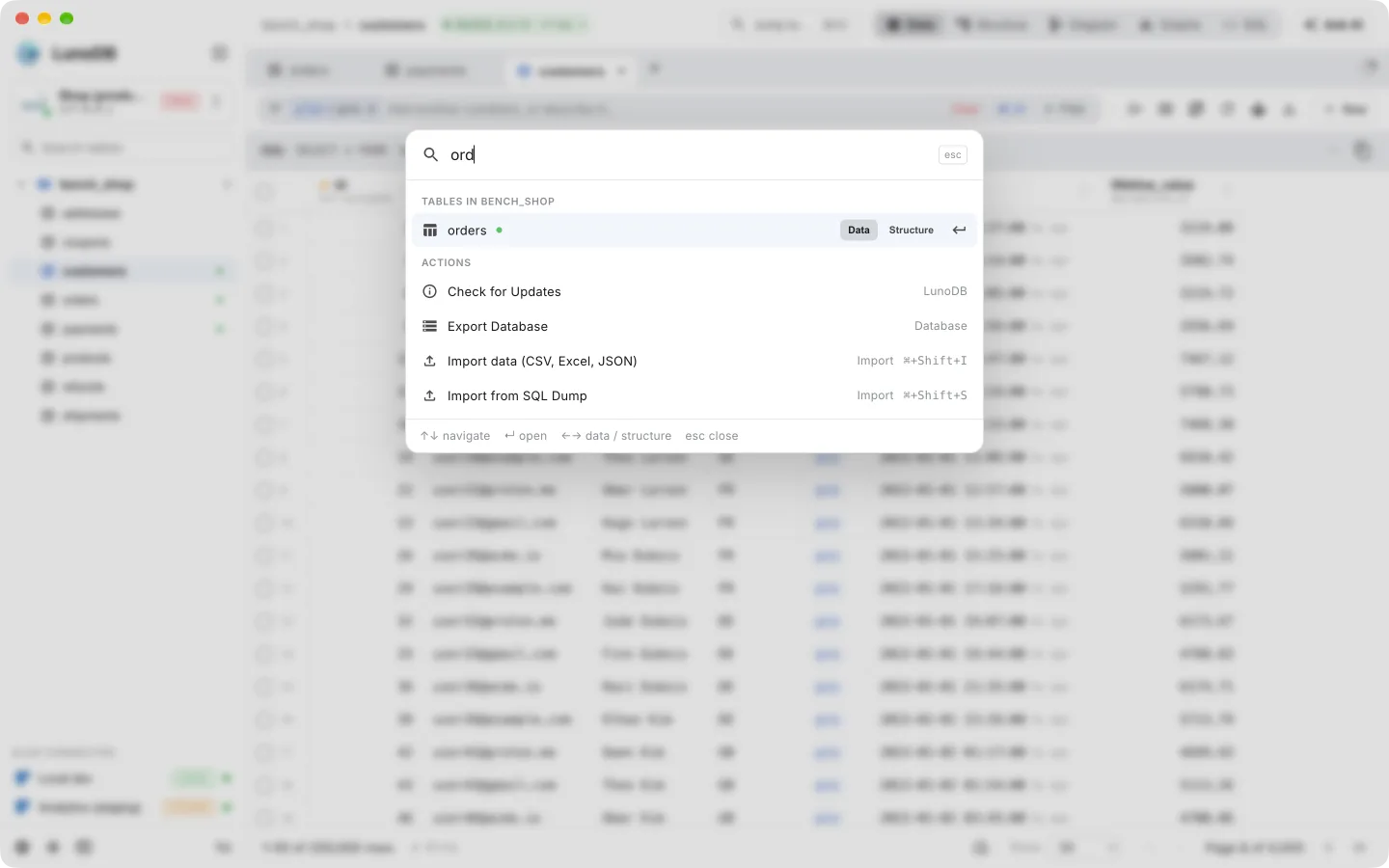
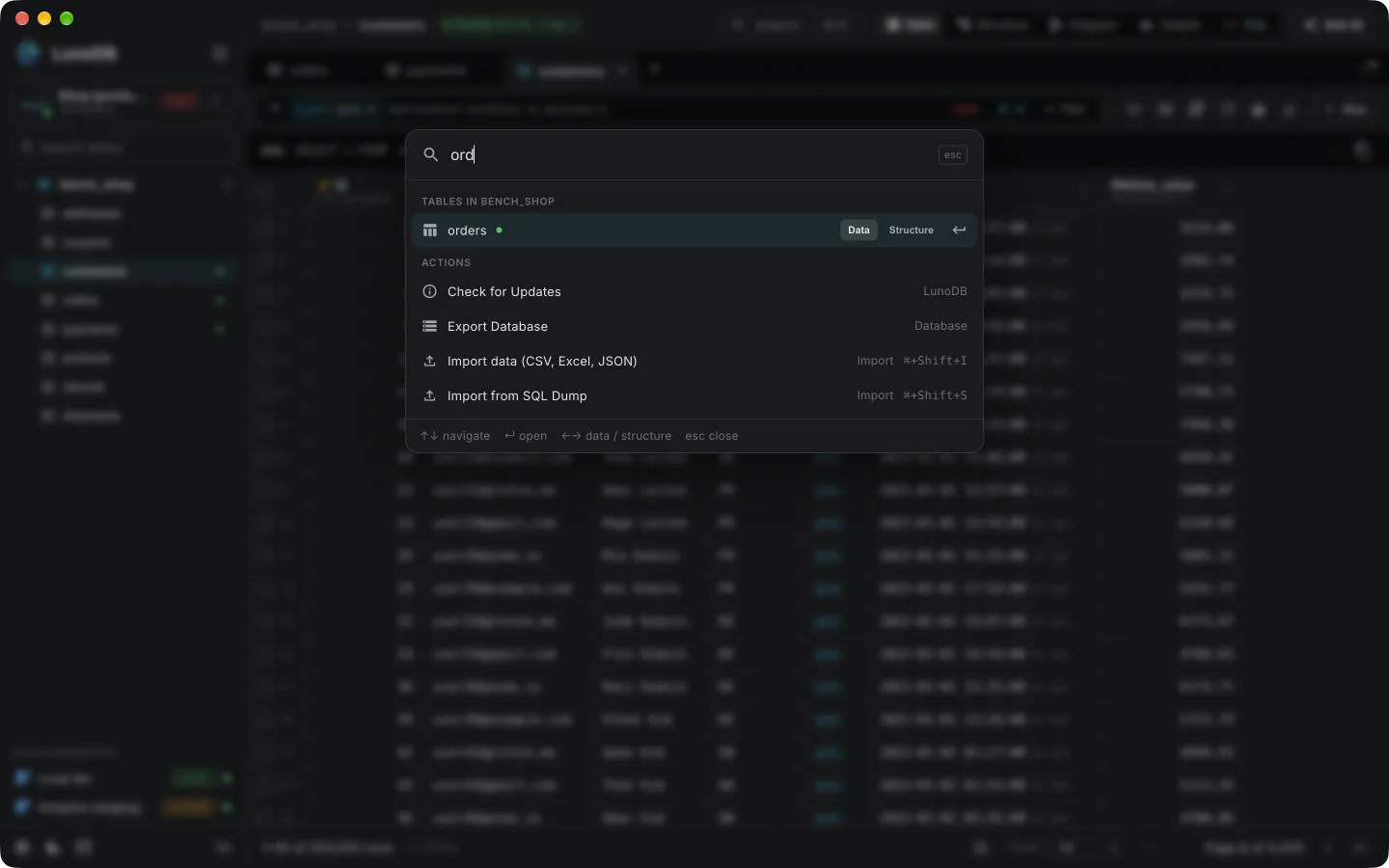
Never hunt for a table again.
The small things you’ll notice on day two.
Touch ID before you touch production
Pick a safety level for each connection. LunoDB asks before changing tables or users.
Math on any selection
Select cells and see the totals instantly. No SUM() needed.
Your databases, in Claude CodePRO
The built-in MCP server lets AI agents read your data privately, on your computer.
Keyboard first
Jump to any table, tab or command without touching the mouse.
Secrets stay in your keychain
Passwords, tokens and SSH passphrases are never stored in plain text.
Picks up where you left off
Reopens your connections and tabs. One slow server never holds up the rest.
One app for every database you touch.
SQL, NoSQL, warehouses and the cloud. Every one gets the data grid, SQL editor, AI and graphs. Pick one to see which database tools it supports.
- Show databases
- User management
- Process list
- Create a database
- Create a table
- Import data (CSV, Excel, JSON)
- Import a SQL dump
- Export a database
- Compare schemasPRO
- Search data across tablesPRO
- Functions, procedures and triggersPRO
- Sequences
- Explain a query plan
- Explain Analyze (safely rolled back)
- Edit table structure
- Reset auto-increment
- Transactions
- Edit results of multi-table queries
- Cancel a running query
- AI answers and read-only MCP queries
- Connect to a whole server without picking a database
- SSH tunnel
- SSL/TLS and certificates
- Paste a connection URL
- Connect through a socket file
- Open database files read-only
Looking for something specific?
All 1,359 features, straight from the app. Search them, or jump to an area. Free features work forever; Pro unlocks the rest.
Databases
23- PostgreSQL
- MySQL
- SQLite
- MongoDB
- MariaDB
- SQL Server (including Azure SQL sign-in)
- Redis
- Turso (libSQL)
- DuckDB
- Oracle (including Oracle Cloud wallets)
- ClickHouse (including ClickHouse Cloud)
- Cassandra (including DataStax Astra)
- Elasticsearch (including Elastic Cloud)
- Firestore
- Firebase Realtime Database
- BigQuery
- Snowflake
- Supabase
- Neon
- CockroachDB
- Amazon Redshift
- OpenSearch (including Amazon OpenSearch)
- Valkey
Connections
125- Reopens your last session’s connections and tabs when you launch
- One unreachable connection never holds up the rest of the app
- Skip a connection while your session restores
- Retry a connection that failed
- Start working with the connections that are already ready
- Carry on without failed connections, or jump to your connections
- Network errors in plain language, showing the address
- Your workspace opens on its own once everything connects
- Saved passwords, passphrases and tokens encrypted by your system keychain
- Tells you when a saved secret can’t be unlocked on this computer
- Uses your default SSH key or a key file you choose
- Sign in with your SSH agent
- Detects password-protected SSH keys and asks for the passphrase
- Enter your key passphrase once and it’s stored securely
- Forget saved key passphrases
- Review and forget trusted SSH servers
- Respects your existing known_hosts file without changing it
- Your SSH keys and passphrases stay locked away from the rest of the app
- Create a connection
- Edit a connection
- Open the Connections window
- Reconnect
- Disconnect
- Delete a connection
- Right-click menu only shows tools your database supports
- Connect with a click, from the menu or from the details panel
- Duplicate a connection (passwords aren’t copied)
- Move a connection to a folder
- Take connections out of their folders
- Rename a folder
- Remove a folder without losing its connections
- Database picker grouped by type (relational, hosted, analytics and more)
- Tips on where to find each database’s connection details
- Name your connection
- Tag connections as Production, Staging or Local
- Color-coded environment tags (red, amber, green)
- Add your own tags alongside the environment tag
- Choose a folder, with suggestions from your existing folders
- Safe mode per connection: off, ask first, Touch ID, or match the environment
- Touch ID offered only on Macs that support it
- Share a connection with AI agents (never for Production)PRO
- Paste a connection URL to fill in the details
- Pasted URLs fill in the form instantly, with clear errors if something’s wrong
- Recognizes hosted services like Supabase, Neon and Redshift from the host name
- Keeps the security settings from your connection URL exactly as written
- Host
- Port
- User
- Password (or API key for Elasticsearch)
- Database, Oracle service name or Cassandra keyspace
- Load the server’s databases and pick one
- Leave the database empty to browse the whole server
- Oracle Cloud wallet (zip file or folder)
- Oracle wallet password
- Pick a wallet alias (like mydb_high) as the service
- Connect to Oracle without installing extra client software
- Cassandra data center
- DataStax Astra secure connect bundle
- Use an Elastic Cloud ID as the host
- Pick a SQLite or DuckDB database file
- DuckDB: enter a new path to create an empty database
- Open SQLite and DuckDB files read-only
- Drop a SQLite or DuckDB file on the window to open it
- Opening a file you’ve used before reuses its saved connection
- Google Cloud service account key (JSON)
- Google Cloud project ID
- Firestore database ID, Realtime Database URL or BigQuery default dataset
- BigQuery location
- BigQuery spending cap that blocks queries over your limit
- Connect to the Firestore, Realtime Database or BigQuery emulator
- Snowflake account (paste your Snowsight URL or account identifier)
- Paste a Snowflake URL and the account is filled in for you
- Snowflake database and schema
- Snowflake key-pair sign-in
- Snowflake key passphrase or access token
- Snowflake warehouse
- Snowflake role
- Turso database URL
- Turso auth token
- Turso local replica that syncs when you connect
- Connect through an SSH tunnelPRO
- SSH host
- SSH port
- SSH user
- SSH sign-in with a password
- SSH sign-in with a private key file
- SSH sign-in with your SSH agent (including 1Password and Secretive)
- Key passphrase asked for once and remembered
- Hop through up to 5 jump hostsPRO
- Jump host address, port and user
- Type jump hosts in the familiar ssh -J format
- Jump host sign-in: same as the SSH host, password, key or agent
- Remove a jump host
- SSL mode: Disable, Prefer, Require, Verify CA or Verify identity
- CA certificate file
- Client certificate file
- Client key file
- PostgreSQL default schema
- Checks your connection details before testing or saving
- Test a connection
- Save a connection
- Save and connect in one step
- Edit a saved connection
- Saved passwords are never shown, just type to replace them
- Credentials encrypted by your system keychain, with a warning if not
- Confirm an SSH server’s identity the first time you connect
- DuckDB support downloads the first time you need it, with progress
- Use a Docker container or Compose service name as the host
- ClickHouse secure ports use encryption automatically
- Enter a Redis database as “db3” or just 3
- Search connections by name, host, database or tag
- ⌘K / Ctrl+K jumps to search
- Filter by environment, with counts for each
- Your 3 most recently used connections at the top
- Arrow keys to move, Return to connect, Esc to clear
- Select several connections with ⌘/Ctrl-click, Shift-click or ⌘A
- Drag to reorder connections
- Drag a connection into a folder
- Collapse or expand a folder
- Move several connections to a folder at once
- Folder names aren’t case-sensitive
- Folder headers show how many connections are in each environment
- Connection details panel
- Open the performance monitor
- Free version saves up to 2 connections, with an option to upgrade
Data grid
204- Refresh the table
- Add a new row
- Fill a table with realistic sample data
- Export a table
- Get AI insights about your data
- Flip rows into columns to read one record at a time
- Show or hide columns
- Show all hidden columns at once
- See how many columns are hidden at a glance
- At least one column always stays visible
- Hidden columns are remembered for each table
- Clear badge when you’re viewing saved rows offline
- See each column’s type and whether it allows empty values
- Primary key columns are marked with an icon
- Foreign key columns show which table they point to
- Empty (NULL) values are clearly marked
- Blank text is clearly marked as empty
- True/false values shown as easy-to-read pills
- List values shown as pills
- Numbers line up neatly on the right
- See how long ago each date was (“2y ago”, “in 3d”)
- Dates and times shown exactly as stored, without time-zone shifts
- Binary values shown as readable digits
- Row numbers down the side
- Columns size themselves to fit their content
- Resize columns by dragging the header edge
- Columns you resize keep their width
- New rows flash green so you can spot them
- Rows dim while reloading instead of disappearing
- Loading placeholder while a table first opens
- Scroll smoothly through huge tables
- Foreign key values are clickable links
- Jump to the related row in another table
- Primary key cells are protected; double-click to copy
- Dismiss a query error
- Fix or clear a filter that has an error without losing it
- Sort by clicking a column header
- Warns before a sort that could be slow on a large table
- Sort anyway after the slow-sort warning
- Asks to save or discard unsaved edits before sorting
- Select a row by clicking it
- Shift-click to select a range of rows
- ⌘/Ctrl-click to add or remove rows from the selection
- Checkboxes for selecting rows
- Select or clear every row on the page in one click
- Select all rows (⌘A / Ctrl+A)
- Clear the selection with Esc
- Move and extend the selection with arrow keys
- Drag to select a block of cells
- Shift-click to grow the cell selection
- See the sum, average, min, max and count of selected cells
- Click a total to copy it
- See how many rows are selected
- Quick column stats: min, max, average, empty values and unique values
- Copy cell values
- Copy every value in a column
- Copy rows as plain text
- Copy rows as JSON
- Copy rows as an HTML table
- Copy rows as a Markdown table
- Copy rows as CSV
- Copy rows as CSV with headers
- Copy rows as an INSERT statement
- Copy cells and paste straight into a spreadsheet
- Duplicate a row by copying and pasting itPRO
- Right-click a row to refresh, copy or delete
- Filter by typing a condition like “total >= 100”
- Describe a filter in plain English and AI builds it
- Build filters with AI
- Add a filter by picking a column, condition and value
- Edit a filter
- Remove a filter
- Clear all filters
- Match all filters or any filter
- Filter by equals or does not equal
- Filter by contains, starts with or ends with
- Filter with LIKE and NOT LIKE patterns
- Filter by greater than, at least, less than or at most
- Filter for values between two numbers or dates
- Filter for empty or non-empty (NULL) values
- Filter with your own SQL condition
- Unfinished filters are flagged so you can complete them
- Remembers your favorite filter condition for each column
- Filters are saved per table and come back after a restart
- Related tables open already filtered to the matching rows
- Jump to the filter bar (⌘F / Ctrl+F)
- Apply filters from the AI assistant to your table
- See the SQL behind your filters
- Expand the filter query to see it in full
- Copy the filter query
- Filters typed while loading apply when the table is ready
- Jump to the first, previous, next or last page
- Show 25 to 10,000 rows per page
- Rows-per-page choice is remembered for tables and results
- See which rows you’re viewing and the total count
- Switch between fast estimated and exact row counts
- Exact row counts whenever you filter
- Last page always lands on the right rows, even with estimated counts
- Total row count loads in the background
- Next page loads ahead of time for instant paging
- Faster paging deep into big tables
- See how long each query took
- Lets you know when Elasticsearch or OpenSearch can’t page any further
- Your page, sort and filters stay put when you switch tabs
- Double-click a cell to edit it
- Edit with the keyboard: Enter saves, Esc cancels, Tab and arrows move
- Unsaved changes stay highlighted until you save
- Rows to be deleted are shown in red and crossed out
- Open long values in a full editor
- Pick dates and times from a calendar
- Date picker also works on text columns that hold dates
- Choose a value from a list for list (enum) columns
- Set a date to the current time in one click
- Pick a date and time from a calendar
- Set a cell to NULL
- Reset a cell to the column’s default value
- Clearing a cell uses the default or NULL, and warns if neither is allowed
- Invalid list values are rejected and the allowed values shown
- Mark rows for deletion with the Delete key
- Undo an edit (⌘Z / Ctrl+Z)
- Redo an edit
- Undo and redo from the Edit menu
- See how many rows you’ve edited or deleted before saving
- Review your changes before saving
- Save changes (⌘S / Ctrl+S)
- Discard all changes
- See the exact SQL that will run, with old and new values
- Save or discard right from the review screen
- Changes save all together, or not at all
- See save progress for each row and what went wrong
- Asks before saving deletions
- Unsaved edits stay when you switch tabs
- Edit tables that have no primary key
- Production databases ask before any change is made
- Production warnings show the table, column, old and new value
- Edits are kept safely while you’re offline and saved after reconnecting
- Side panel with every field of the selected row
- Side panel shows the row number and its primary key
- Search fields in the side panel
- Edit fields in the side panel
- Copy a row as JSON from the side panel
- Delete a row from the side panel
- Date pickers, list choices, full editor and related-row links in the side panel
- Edited fields are marked in the side panel
- Resize the side panel
- Close the side panel
- Compare selected rows side by side
- Edit values in the side-by-side view
- Select and right-click rows in the side-by-side view
- Keep viewing your data, read-only, when the connection drops
- See when the data was last updated while offline
- Latest data reloads automatically when you’re back online
- Tries to reconnect before showing an error
- Clear messages when a server is offline or a local file is missing
- Run a suggested query from AI insights in the SQL editor
- Edit a field in a full-size editor
- View values as text, JSON or a tree
- Opens JSON values in JSON view automatically
- Format JSON
- Compact JSON onto one line
- Turn word wrap on or off
- Expand and collapse JSON sections
- Expand every JSON section
- Large JSON opens neatly collapsed
- Set a value to NULL (and see why when it’s not allowed)
- See at a glance whether your JSON is valid
- JSON errors explained in plain words with the line and column
- Stops you from saving broken JSON
- Warns before you edit a hashed password
- Character count turns red when you go over the column’s limit
- Line count
- Copy the value
- Revert to the original value
- Save with ⌘Enter / Ctrl+Enter
- Reopening an edited value shows it’s waiting to be saved
- Primary keys open read-only
- Add a row with a simple form
- Paste a copied row as a new row after checking its values
- Labels show which fields are keys, automatic or required
- Set any field to NULL
- Pick list values from a dropdown
- Date shortcuts: now, pick a date, NULL or default
- Automatic columns are left for the database to fill
- Blank fields use the column’s default value
- Errors show in the form so you can fix them
- Generate realistic sample rows that fit each column
- Generate up to 1,000 rows at once
- Quick row counts: 1, 5, 10, 25, 50 or 100
- Use column defaults
- Preview sample rows before adding them
- Get a fresh preview
- Realistic values that match column names, like emails, names and cities
- Sample data links to real rows in related tables
- Warns when a related table is empty
- Auto-numbered columns are filled in by the database
- Sample rows are added all at once
- Search and pick multiple tables for diagrams and AI
- Copy all values in a column
- Delete selected rows
- Refresh
- Right-click keeps your multi-row selection
- Column stats from the column header menu
- Set to the column’s default
- Pick a list value
SQL editor
212- Fix a failed query with AI
- Open a new query tab
- Close a query tab with its button or a middle-click
- Closing the last tab clears it instead of closing it
- Double-click a query tab to rename it
- Tabs are named after their query, file or saved query
- A dot marks file and saved-query tabs with unsaved changes
- Hover a tab to see its file’s location
- Switch to the previous or next query tab from the keyboard
- Query tabs and their text come back when you reopen a connection
- Very large queries are kept safely between sessions
- Open a .sql file in a tab
- Opening a file that’s already open switches to its tab
- Save a tab back to its .sql file
- Save a tab as a new .sql file
- Files keep their original encoding marker when saved
- Windows line endings don’t make a file look changed
- Drag a .sql file onto the editor to open it in a tab
- Asks before loading dropped files over 2 MB
- Files over 10 MB open their first 10 MB, cut cleanly between statements
- Dropping a file that isn’t .sql shows a clear message
- Save, Don’t Save or Cancel when closing a tab with unsaved changes
- Save the current tab to Saved Queries
- ⌘S saves a tab back to its file, saved query or routine
- Renaming or deleting a saved query updates its open tabs
- Open a function, procedure or trigger definition in a tab
- Sequences and hidden definitions open as read-only text
- Save a routine back to the server after reviewing the SQL it runs
- Warns if someone changed a routine on the server since you opened it
- Save over someone else’s change on the server
- Open the server’s version of a routine in a new tab to compare
- Open the previous definition after a routine fails to save
- Saving a routine is all-or-nothing: if it fails, the old version stays
- Run the statement at the cursor
- Run the selected text, including every statement in it
- Run all statements in the tab
- Choose whether Run runs the current statement or all statements
- Run everything as one transaction: all saved or none
- Run all stops at the first failure and undoes an open transaction
- Commit or roll back a transaction a script left open
- Warns when MySQL or MariaDB commits statements early in a transaction
- Tells you when a lost connection leaves a commit’s outcome unknown
- Run All button is red so it’s never mistaken for Run
- Run a statement from the run icon beside it
- Cancel a running query
- Live timer while a query runs
- Progress line while running, like “Loading rows”
- Big results start appearing before they finish loading
- Re-run the query with ⌘R after confirming
- Switch database from the toolbar
- Row limit for SELECT queries, including no limit
- Adds a row limit automatically to SELECTs without one
- Warns before running a SELECT with no limit: add one or run anyway
- Semicolons inside strings, comments and routine bodies don’t split statements
- A comment on the same line as a statement is kept as its note
- Asks for :name and ? parameter values before running
- Enter a parameter value as raw SQL, like NOW()
- Preview the query with parameter values filled in
- Run with placeholders left as written
- Parameter values are remembered per connection for the session
- Safe mode asks before changing data on production connections
- Asks “Change every row?” before an UPDATE or DELETE with no WHERE
- Safe mode lists the statements that will change data
- Change safe mode right from the confirmation dialog
- Run AI-suggested SQL in the editor once, still protected by safe mode
- SQL inserted by AI is added to the end of the current tab
- SQL syntax highlighting for keywords, functions, types and names
- Autocomplete table names after FROM, JOIN and INTO
- Autocomplete columns after a table name or alias and a dot
- Autocomplete columns from tables in the statement, plus keywords
- Table suggestions show column count and approximate row count
- Function suggestions with fill-in placeholders, like count and coalesce
- Snippets for common queries: sel, selw, cnt, ins, upd
- Suggestions stay out of the way where they don’t make sense
- Hover a table, alias or column to see its type and keys
- Format SQL to make it readable
- Compact SQL onto one line
- Clear the editor and its results
- Undo formatting, clearing and history inserts
- Right-click to run, run all, format SQL or optimize with AI
- The current statement is highlighted
- Each statement in a selection gets its own highlight and run icon
- The running statement pulses and its run icon spins
- Failed statements are marked with the error message
- Error marks clear when you start editing
- Placeholder hint shows the run shortcut
- Vim key bindings
- Vim status line with mode and : commands
- Find and replace
- Toggle line and block comments
- Multiple cursors
- Move, copy and delete lines
- Expand and shrink the selection
- Code folding
- Matching brackets are coloured and highlighted
- Brackets and quotes close automatically
- Highlights other uses of the selected word
- Hints for function parameters
- Editor text scales with the app’s text size
- Resize the editor and results by dragging, arrow keys or double-click to reset
- Editor height is remembered
- Collapse or expand the editor
- Toolbar labels shrink to icons when space is tight
- Open appearance settings from the editor
- Status bar shows statement number, line and column, and SQL dialect
- Status bar summarises the last Run all
- Write with AI from the toolbar
- Optimize the statement at the cursor with AI and replace it in place
- Each statement’s result opens in its own tab
- Earlier results stay open as tabs across runs, up to 50
- A new run opens on its first failure or first result
- Result tabs show row count and time; hover for the full statement and database
- Rename a result tab
- Drag result tabs to reorder them
- Scroll result tabs sideways with the mouse wheel
- Refresh a result tab to re-run its statement
- Asks before re-running a statement that changes data
- Copy a result tab’s statement
- Close a result tab, other tabs or all tabs
- Clear all results
- Messages tab shows each statement’s outcome and time
- Shows rows affected for statements that don’t return rows
- Shows which statements were skipped after a failure
- Jump to the failed statement in the editor
- Results stay put when you switch connection or database and back
- Small results come back after a reload within five minutes
- Result filters and unsaved edits stay when switching result tabs
- Filter result rows by column, pattern or search across all cells
- Header shows the query’s own sort order
- Result columns sized to fit their content
- Open a single-table result as a table in the Data view
- Export results: filtered rows, everything loaded, or a fresh run
- Export before running exports the query in the editor
- Edit cells in a single-table query result
- Edits in a joined result are saved to each column’s own table
- Results that can’t be edited are shown read-only, with the reason
- Undo and redo result edits
- Review the SQL for your result edits before saving
- Save result edits to the database
- Discard result edits after confirming
- Asks before refreshing or closing results with unsaved edits
- Shows progress when saving large result edits
- Edits are kept if a lost connection leaves a save’s outcome unknown
- Compare one result with another
- Match compared rows by a key column or by row order
- Show only differences or all rows
- Rows marked as added, removed, changed or the same
- Hover a changed cell to see its old and new value
- Columns found in only one result are flagged
- Duplicate key values are pointed out when matching
- Explain: see the query plan without running it
- Explain Analyze: run the query, time each step, then roll back
- Plan shown as a step tree with rows and time or cost bars
- See actual vs estimated rows for each step
- Plan summary: estimated or actual, total time or cost, and rollback status
- Full table scans are flagged, with a warning for big ones
- Switch between the plan and raw output
- Shows the database’s raw plan when it can’t be drawn
- Explain works on one statement at a time and tells you so
- History of the queries you’ve run
- History grouped by day with time, duration and database
- Search history by SQL, database or note
- Filter history: all, starred or saved
- Open a query from history, reusing its tab if it’s still open
- Open a query from history in a new tab
- Copy SQL from history
- Star or unstar a query in history
- Add or edit a note on a query in history
- Save a query from history to Saved Queries
- Remove a query from history
- Clear history while keeping starred queries
- Unstar all queries
- History keeps the query as you wrote it, before any automatic limit
- A transaction run is saved to history as one script once it commits
- Save a query with a name and folder
- Create a folder while saving
- Create a saved-query folder
- Save the current tab from the saved queries list
- Open a saved query in a tab linked to it
- Copy a saved query’s SQL
- Rename a saved query
- Move a saved query to another folder
- Delete a saved query
- Rename a folder
- Delete a folder and move its queries to the top level
- Collapse and expand folders
- Search saved queries by name or SQL
- Saved queries belong to each connection and are shared across windows and databases
- Restored saved queries merge with the ones you have
- Open the query log from the sidebar
- See every query from this session, newest first, with a count
- Each log entry shows time, result, connection, database, rows and duration
- Failed queries show their error
- Expand long queries or show less
- Copy a query from the log
- Remove an entry from the log
- Turn SQL syntax highlighting on or off in the log
- Clear the log
- Resize the query log by dragging or with arrow keys
- Open a SQL file
- Save a SQL file
- Save a SQL file as a new file
- Open query history
- Run all statements
- Format SQL
- Choose whether Run runs the current statement or all
- Row limit for queries
- Explain Analyze: run, time each step, then roll back
- Close a result tab
- Close all result tabs
- Open a query in a new tab
- Add or edit a note
Structure & schema
116- Pick a table from the structure overview
- Search tables in the overview
- Sort tables A–Z or by size
- See row count, column count and size for every table
- Browse the table overview with the keyboard
- Search matches highlighted in table names
- Switch tables from the header
- Search tables in the table switcher
- Search and filter columns
- Refresh the structure view
- Refreshing updates row estimates and sizes
- Show the CREATE TABLE statement
- Copy the CREATE TABLE statement
- Open the CREATE TABLE statement in the SQL editor
- Row count at a glance (estimated or exact)
- Count rows exactly
- Data size and index size at a glance
- See the next auto-increment value
- Set the next auto-increment value
- Columns list shows position, name, type, nullable, key and default
- Primary key and foreign key icons on columns
- Edit a column’s name, type, nullable and default in place
- Double-click a column to edit it
- Press Return to save a column edit, Esc to cancel
- Drop a column
- Add a column
- Choose where a new column goes
- Set new columns as nullable, unique or auto-increment
- Default text values are quoted for you
- Column type suggestions as you type
- Preview the SQL before adding a column or index
- Indexes list shows name, columns, type, uniqueness and cardinality
- Add an index
- Pick index columns in order
- Suggested index names
- Create unique indexes
- Drop an index
- Primary key index can’t be dropped by accident
- See foreign keys with their on delete and on update rules
- Jump to the referenced table from a foreign key
- New or changed columns and indexes are highlighted briefly
- Production connections show the SQL and ask before any structure change
- Read-only structure view for databases that can’t change structure
- Create a table with a visual column builder
- New tables start with an id primary key column
- Add a column
- Remove a column
- Pick a column type from a list of common types
- Set column length
- Set a default value
- Mark columns as nullable
- Mark columns as primary key
- Mark columns as auto-increment
- Mark columns as unique
- Add an index to a column
- Add a foreign key to another table’s column
- Choose what happens on delete and on update for foreign keys
- Show or hide foreign key details
- Live preview of the table’s SQL
- Create stays disabled until the table and columns are named
- New tables are saved to query history
- Rename a table
- Drop a table
- See everything you’ll lose before dropping a table
- Empty a table (truncate)
- Restart ID numbering when emptying a table
- Skip foreign key checks when emptying a table
- Emptying a table asks twice, with a summary of your choices
- View your database as a relationship diagram
- Related tables are laid out automatically
- Table cards show columns, types and primary keys
- Scroll long column lists inside a table card
- Animated relationship lines labeled with the linked columns
- Drag tables to rearrange them
- Zoom and pan the diagram
- Fit the whole diagram on screen
- All tables fit on screen when the diagram opens
- See table and relationship counts
- Add tables without relationships to the diagram
- Remove added tables from the diagram
- Export the diagram as a PNG image
- Helpful tips when no relationships are found
- List database users grouped by name and host
- Search users
- Create a user
- Change a user’s name, host and password
- Confirm password with a warning if they don’t match
- Server-wide privileges grouped by category
- Select or clear all server-wide privileges
- Grant or revoke privileges per database
- Grant or revoke everything on a database
- Set hourly limits on updates, connections and queries
- Delete a user
- Review the SQL before applying user changes
- See what’s running on the server
- See each process’s ID, user, host, database, state and time
- Refresh the process list
- Stop a running process
- List the databases on a server
- Search databases with highlighted matches
- See table count and size for each database
- The open database is clearly marked
- Create a database
- Rename a database
- Drop all tables in a database
- Delete a database
- The open database can’t be renamed or deleted
- Refresh tables
- Show databases
- Manage users
- See running processes
- Create a new table
- Search data across tables
- Compare schemas
- Open a table
- View a table’s structure
Schema compare & data searchPRO
31- Compare two schemas and get a migration script
- Choose the source connection and database
- Choose the target database
- Compare, and compare again after changes
- Cancel a compare in progress
- Progress bar while schemas are read
- Warns you when comparing a database with itself
- Finds differences in tables, columns, indexes, foreign keys and routines
- Differences grouped by table, plus functions, procedures and triggers
- Summary of all differences found
- Choose which changes to include
- Include or exclude a whole group at once
- Changes that drop things are left out until you include them
- Clear warnings for changes that lose data, may change data, or can’t be scripted
- Preview the SQL for any single difference
- See how many changes are selected and how many lose data
- Open the migration script in the SQL editor without running it
- Script steps are ordered so they run cleanly
- Script notes point out steps that need manual work
- Search for text across every table in a database
- Match text that contains, equals or starts with your search
- Match case
- Also search numbers, dates and UUIDs
- Choose which tables to search
- Cancel a search in progress
- See progress as tables are searched
- Results grouped by table, expandable
- Matching text highlighted in results
- Open matching rows in the table
- Shows up to 20 rows per table and 1,000 matches in total
- Tables that take over 10 seconds are skipped and listed
AI assistant
139- OpenAI (GPT models)
- Anthropic (Claude)
- Google (Gemini)
- xAI (Grok)
- Apple Intelligence (on-device)
- Ollama (local models)
- OpenRouter
- DeepSeek
- Any OpenAI-compatible service
- GPT-6 models (Astra, Sol, Luna)
- GPT-5.6 models (Sol, Terra, Luna)
- GPT-5.5 and GPT-5.4 models, including Mini
- GPT-5.3 Codex and GPT-5.2 models, including ProPRO
- GPT-5 models (Mini, Nano)
- GPT-4.1 and GPT-4o models (older)
- Claude Fable models (5, 5.1)
- Claude 5.5 models (Opus, Sonnet, Haiku)
- Claude 5 models (Opus, Sonnet)
- Claude 4 models (Opus 4.5–4.8, Sonnet 4.5 and 4.6, Haiku 4.5)
- Gemini 3 Flash models (3.5 Lite to 3.8)
- Gemini 3 Pro and Flash models (preview)
- Gemini 2.5 models (Pro, Flash, Flash Lite)PRO
- Grok 4.3 to 4.7 models
- Grok 4.20 models (multi-agent, reasoning and non-reasoning)
- Grok Build models for coding
- DeepSeek models (chat, coder, reasoner)
- Retired models switch automatically to the closest current model
- Uses the model’s highest effort level if yours isn’t supported
- Turn all AI features on or off
- Turn AI query writing on or off
- Turn smart filtering on or off
- Turn the AI chat assistant on or off
- Turn AI graph and chart suggestions on or off
- Turn voice dictation on or off
- Choose which AI provider to use
- Separate API key for each provider, stored securely in your system keychain
- Tells you when a saved key can’t be read and removes it
- Pick a default model for each provider
- Set Gemini’s thinking level
- Set Claude’s effort level (Low to Max)
- Set OpenAI’s reasoning effort (Low to Max)
- Choose how many Grok agents work together (4 or 16)
- Set your Ollama server address
- Load the models you have installed in Ollama
- Load the list of OpenRouter models
- Ollama web search, on by default or per chat (needs an Ollama API key)
- Set Ollama’s thinking level (off, low, medium, high) for models that support it
- Name your custom provider and set its address and optional API key
- Sign in to Anthropic with an API key or Workload Identity Federation
- Set up Workload Identity Federation for Anthropic
- Anthropic federation tokens refresh without restarting the app
- Explains in plain words why Apple Intelligence isn’t available on your Mac
- Apple Intelligence runs entirely on your Mac: no key, no cost, nothing sent out
- On-device AI trims older chat messages to keep working
- Prompts tuned for the on-device model
- Tip suggesting a larger model when using on-device AI (dismissible)
- AI writes SQL that matches your database’s dialect
- Show cost estimates
- AI: monthly budget (requests pause once reached)
- Budget bar turns amber at 80% and red at the limit
- AI requests stop when you go over your monthly budget
- See AI requests, tokens and cost, all time and by provider
- Reset AI usage history
- Open the AI assistant panel (Ask AI)
- Resize the assistant panel
- Ask questions about your database in plain English
- Replies appear as they’re written
- Stop a reply mid-way
- Dictate your message by voice
- Asks for an OpenAI key if you dictate without one
- Starter questions about a table or the whole database
- Choose which tables the AI knows about in a chat
- Suggests adding tables you mention in your message
- Switch models right from the chat
- Set effort or thinking level for each chat
- Jump to AI settings from the panel
- Copy SQL from any AI reply, answer card or dialog
- Insert SQL from a reply into the editor
- Run SQL from a reply in the editor, with a warning on production
- Copy a whole reply as plain text
- Shows which tables the AI is reading while you wait
- Nicely formatted replies with highlighted SQL
- See which model answered and how long it took
- Start a new chat
- Delete the current chat
- Clear error messages with a shortcut to settings
- Replies with a single query become answer cards that run it and show the result
- Answer cards are a Pro featurePRO
- Answer cards on PostgreSQL, MySQL, MariaDB, SQLite, Turso, SQL Server, Oracle, MongoDB, ClickHouse and DuckDB
- Run read-only answers automatically
- Optionally auto-run answers on production connections too (off by default)
- Answers are read-only, limited to 1,000 rows and 10 seconds
- Results summed up in one plain-English sentence
- Picks the best view automatically: single value, line chart, bar chart or table
- Switch an answer between bar, line and table views
- Bar charts show the top 12 plus an “Other” bar
- Labels show if an answer is read-only, on production, changes data or failed
- Save an answer to Graphs
- Open an answer in a new SQL tab
- Turn an AI query into a filter on your table
- Run a waiting answer read-only when auto-run is off
- Answers asked while offline run once you’re reconnected
- Queries that change data never run on their own; see how many rows they’d affect
- Review a data-changing query in the SQL editor first
- Fix a failed answer with AI
- See row count, run time and row limit for each answer
- Chats saved per connection, kept after restarts and shared across windows
- Reopens your latest chat for each connection
- Chats named automatically from your first question
- Keeps up to 200 chats of up to 200 messages each
- Answer card results saved with the chat
- Browse past chats (Today, This week, Older)
- Search your chats
- See chats from every connection
- Rename a chat
- Copy a chat as Markdown
- Delete a chat from history
- Write with AI: describe a query and get SQL with an explanation
- Keep refining the SQL AI wrote
- Go back to any earlier version
- Insert AI-written SQL into the editor
- Run AI-written SQL
- Filter with AI: describe the rows you want
- Type a description in the filter bar to filter with AI
- Optimize the query under your cursor with AI
- See before-and-after scores out of 10 and a list of issues
- Use the optimized query in the editor
- Index suggestions with ready-to-run CREATE INDEX statements
- Won’t suggest indexes you already have
- Data Insights for a table: patterns, outliers and data quality
- Choose how many rows Insights looks at (50, 100, 250 or 500)
- Base Insights on the newest or oldest rows
- Data quality score
- Run or copy suggested queries to try
- Re-run an AI analysis
- Suggest graphs with AI: pick tables, preview, add to Graphs
- Understands the chart type you ask for (bar, line, pie, area, scatter)
- Open the AI chat assistant
- Optimize a query with AI
MCP serverPRO
18- Let AI agents read your databases (turn on or off)
- Choose which connections AI agents can use
- Production connections are never shared with AI agents
- AI agents only use connections you already have open
- AI agents never see your passwords or credentials
- AI agents can list your connections
- AI agents can list databases, tables and views
- AI agents can see table columns, types, defaults and keys
- AI agents can run one read-only query at a time
- Agent queries are read-only and size-limited, with a note when results are cut
- Copy the setup command for Claude Code
- Copy setup settings for Claude Desktop, Cursor and other AI tools
- See whether it’s running and how many agents are connected
- Create a new access token (disconnects agents using the old one)
- Requires an active Pro license
- Agents connect privately on your computer with a secure token
- Agent activity is logged without your queries or data
- Keeps working after app updates without setting it up again
GraphsPRO
27- Line chart
- Bar chart
- Pie chart
- Area chart
- Scatter chart
- See saved graphs alongside the chart
- Create a graph from a SQL query
- Edit a graph
- Duplicate a graph
- Delete a graph
- Search graphs by name or table
- Reorder graphs
- Switch chart type in place
- Refresh a graph’s data (⌘R)
- Save a graph as a high-resolution PNG with title, source and legend
- See a graph’s data as a table under the chart
- Test the query while editing a graph
- Name your graph
- Choose the X axis or pie slice labels
- Choose the Y axis or pie slice sizes
- Title the X and Y axes
- Pick your own colours
- Plot several series, each from its own query if you like
- Hover tooltips and legend
- Easy-to-read axis labels (dates like “Oct 28”, numbers like “48k”)
- Series colours stay readable in light and dark mode
- Graphs saved per connection, database and table
Import, export & backup
104- Export to CSV
- Export to Excel (XLSX)PRO
- Export to JSONPRO
- Export as SQL INSERT statementsPRO
- Export filtered rows, the current page, selected rows or the whole table
- Export query results, or rerun the query to export every row
- Include column headers in CSV files
- Choose the CSV delimiter: comma, semicolon, tab or pipe
- Write NULL values as empty cells or as “NULL”
- Choose which columns to export
- Live preview of the first lines of the file
- See the estimated file size before exporting
- File name suggested from the table and what you’re exporting
- Excel files keep numbers and dates as real numbers and dates
- Huge Excel exports continue on a new sheet, and over-long cells are reported
- Export millions of rows without running out of memory
- Cancel an export while it runs
- Keep working while an export runs in the corner
- Pro export formats are protected inside the app
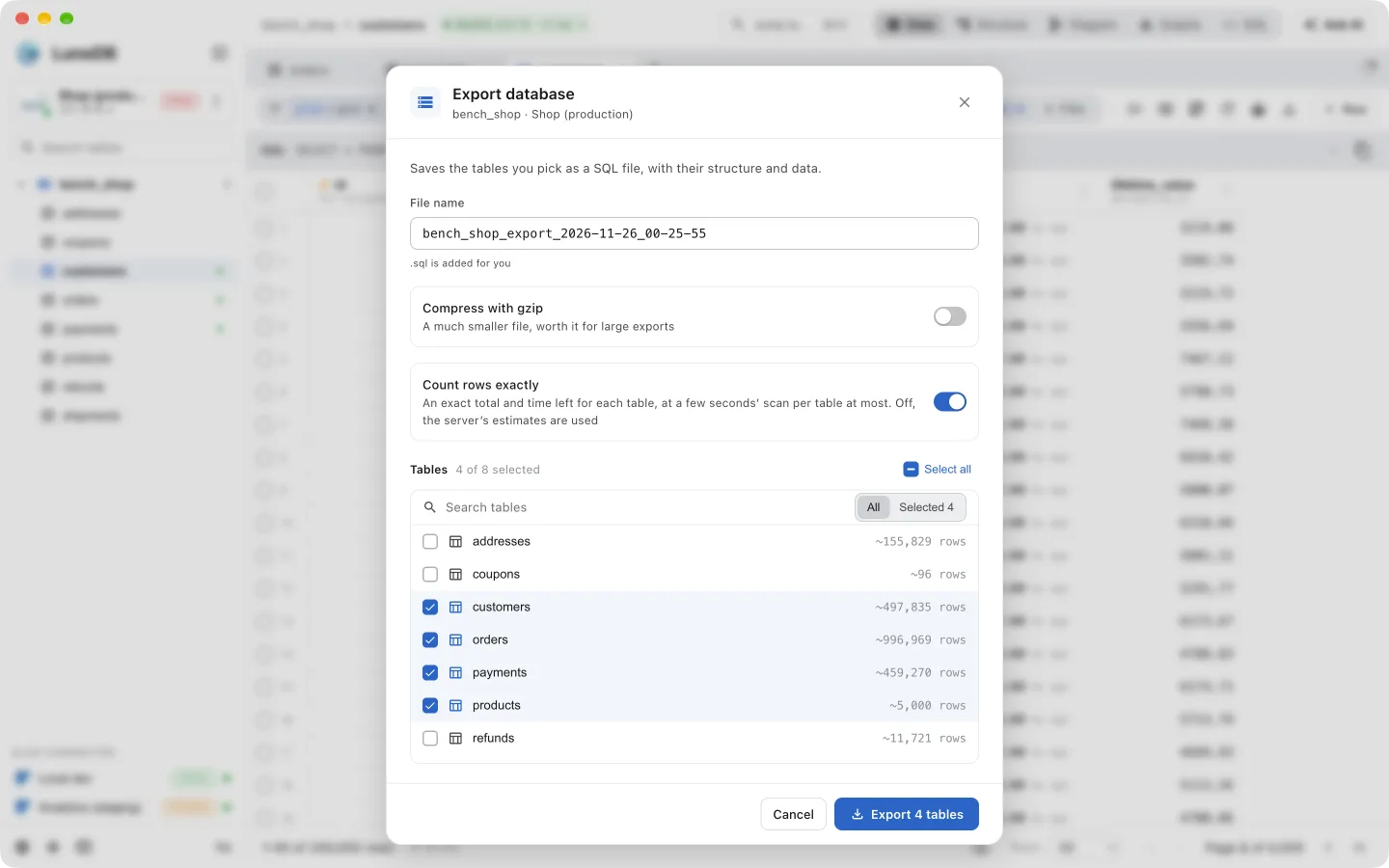
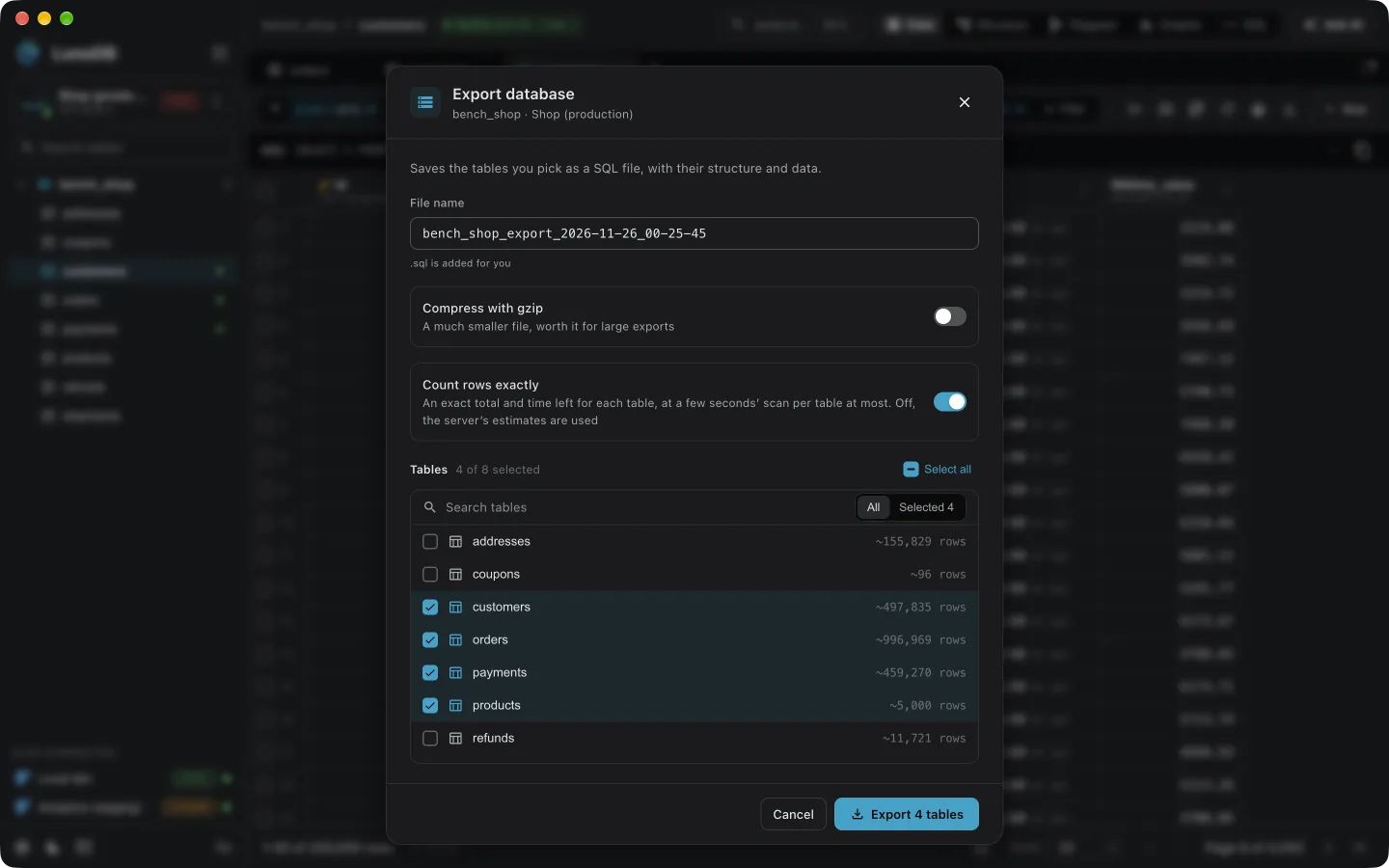
- Export a whole database to a SQL file, with structure and data
- Pick which tables to export, with search and select all
- Choose the export file name
- Compress exports with gzip
- Count rows exactly before exporting (MySQL and MariaDB)
- Overall and per-table progress bars
- Time-left estimate for each table and overall
- Progress that reflects each table’s size
- Keep working while a database export runs in the background
- Cancel a database export
- Shows where the file was saved
- Cancelled exports leave no half-written file behind
- Import a SQL file into a database
- Import plain .sql files
- Import gzipped .sql.gz files
- Drag and drop a SQL file to import it
- Choose which database to import into on server-wide connections
- Choose the file encoding: UTF-8, Latin-1 or UTF-16
- Use the official command-line tool for large files (mysql, psql, sqlite3, sqlcmd)
- Step-by-step install instructions for the command-line tool on your system
- Skip tables that already exist (CREATE TABLE IF NOT EXISTS)
- Skip rows that already exist (INSERT IGNORE)
- Color-highlighted SQL preview before importing
- Handles database switches in dumps and SQL Server identity inserts
- Progress bar with recent errors as the import runs
- Keep working while an import runs in the corner
- Show all or fewer import errors
- Copy all import errors
- Clear result: imported with errors, nothing imported, or cancelled
- Import data from a file into a new or existing table
- Import CSV, TSV and TXT files
- Import an Excel sheet (.xlsx, .xlsm)PRO
- Import JSON, NDJSON and JSON Lines filesPRO
- Import into an existing table or a new one
- New table name suggested from the file name
- Column types for new tables detected from your data
- Choose the CSV delimiter: comma, semicolon, pipe or tab
- Choose the CSV quote character: double, single or none
- Choose which Excel sheet to import
- Treat empty cells as NULL or as empty text
- Use the first row as column names
- Preview the file as a table before importing
- CSV file encoding detected automatically
- Blank or duplicate column names fixed automatically
- Import huge CSV files without running out of memory; empty rows skipped
- Stop a data import while it runs
- Import progress bar
- Create an encrypted backup file
- Backups always include your saved connections and their credentials
- Include saved graphs in backups
- Include query history and saved queries in backups
- Include app settings in backups
- Protect backups with a password
- Strong AES-256 encryption; older backups still open
- Same backup format as LunoDB Mobile
- Restore a backup made on any computer
- Drag and drop a backup file to restore it
- Unlock a backup with its password
- Pick which connections to restore
- Choose what happens when names clash: skip, replace or keep both
- Connections you already have are marked
- Choose whether to restore graphs, query history, saved queries and settings
- Saved queries come back along with their connection
- Summary of what was restored and what was skipped
- Graphs come back with their connections
- Restore backups made in LunoDB Mobile, certificates included
- Restore a backup during setup or from Settings
- Send saved connections to LunoDB Mobile with a QR code
- Choose which connections to send
- Sends passwords, SSH settings, tags and graphs
- Encrypted transfer that expires after 15 minutes
- Step-by-step progress through the transfer
- SSL settings and certificates converted for mobile
- Warns when a connection uses a jump host, which mobile doesn’t support
- Passwords stay protected during the transfer
- Choose the CSV delimiter (comma, semicolon, tab, pipe)
- Estimated file size, rows and columns
- Edit the file name
- Show the file when the export finishes
- Progress bar while exporting
- Excel exports over a million rows spread across sheets; cut-short cells are reported
- Back up connections
- Import data from CSV, Excel or JSON
- Import a SQL dump
- Export a database
Safety
8- Choose a safety level per connection: off, ask before changes, or ask with Touch ID
- Automatically asks for confirmation on connections tagged Prod
- Confirm with Touch ID on macOS
- Covers truncating, dropping, renaming, creating, importing, users and databases
- Saved charts never run SQL that changes data when safe mode would ask first
- Asks before changing tables, databases, users or importing data
- Confirm changes on protected connections with Touch ID
- Saved charts that would change data don’t run
Keyboard shortcuts
77- ⌘I / Ctrl+I — About LunoDB
- ⌘, / Ctrl+, — Open Settings
- ⌘Q / Ctrl+Q — Quit
- ⌘⇧N — New workspace window
- ⌘N — Create a connection
- ⌘E — Edit the connection
- ⌘⇧O — Open a SQL file
- ⌘S — Save the SQL file, saved query or table edits
- ⌘⌥S — Save SQL file as
- ⌘⇧B — Back up connections
- ⌘⇧R — Restore from a backup
- ⌘Z — Undo
- ⇧⌘Z / Ctrl+Y or Ctrl+Shift+Z — Redo
- ⌘X — Cut
- ⌘C — Copy
- ⌘V — Paste
- ⌘⇧T — Refresh tables
- ⌘⇧D — Show databases
- ⌘⇧I — Import data
- ⌘⇧S — Import a SQL dump
- ⌘O — Open a table
- ⌘R — Reload the window
- ⌘L — Show or hide the query log
- ⌥⌘T / Ctrl+Shift+Alt+T — Flip rows and columns
- ⌘0 — Actual size
- ⌘+ — Zoom in
- ⌘- — Zoom out
- ⌃⌘F / F11 — Full screen
- ⌘K — Open the command palette
- ⌘⇧K — Open the AI chat assistant
- ⌘⇧J — Switch between light and dark theme
- ⌘R — Reconnect a disconnected connection
- Tab — Switch what the table search looks through
- ← / → — Choose Data or Structure for a table
- ⌘↵ / Ctrl+Enter — Run the current statement or selection
- ⇧⌘↵ — Run all statements
- ⇧⌘F — Format SQL
- ⌘T — New SQL tab
- ⌘W — Close the SQL tab, or clear the last one
- ⌘⇧[ / Ctrl+PageUp — Previous SQL tab
- ⌘⇧] / Ctrl+PageDown — Next SQL tab
- ⌘R — Re-run the last query (asks first)
- Middle-click — Close a SQL tab
- Double-click — Rename a SQL tab
- F2 or double-click — Rename a result tab
- Middle-click — Close a result tab
- ↑ / ↓ — Resize the editor and results (Shift for bigger steps, double-click to reset)
- ⌘W — Close the table tab
- ⌘⇧W — Close all tabs for the connection
- Middle-click — Close a table tab
- Double-click a tab — Open its structure
- ⌘S — Save your table edits
- ⌘Z / ⇧⌘Z / Ctrl+Y — Undo or redo table edits
- ⌘A — Select all rows
- ⌘F — Jump to the filter bar
- ⌘C — Copy selected cells as tab-separated text
- ⌘C then ⌘V — Duplicate a row
- ⌘R / F5 — Refresh the table
- Delete / Backspace — Delete selected rows
- Esc — Clear the selection
- ↑ / ↓ — Move the selection (hold Shift to extend)
- ⌘-click / Shift-click — Select several rows or a range
- Double-click — Edit a cell
- Tab, Shift+Tab, ↑, ↓ — Save the cell and move to the next one
- Backspace in an empty filter — Remove the last filter
- ⌘R — Refresh the structure
- ⌘R — Re-run the graph’s query
- ⌘↵ — Run the query in the graph editor
- ⌘↵ — Save a field value
- ⌘R — Reload the app
- → or Enter / ← — Next or previous step
- ↑ / ↓ — Resize the log panel (Shift for bigger steps, double-click to reset)
- ⌘K — Jump to search
- ⌘A — Select all visible connections
- ⌘-click / Ctrl-click, Shift-click — Select several connections (Esc clears)
- Double-click or Enter — Connect
- Enter — Send a message (Shift+Enter for a new line)
Settings & appearance
80- Open multiple windows, each with its own workspace
- Each window keeps its own workspace, even after a reload
- Each window has its own SQL tabs
- Long unsaved SQL tabs are kept safe between restarts
- Window size and position are restored when you reopen the app
- Native macOS title bar with a translucent sidebar
- Zoom in, zoom out and reset to actual size
- Full-screen mode
- Click the Dock icon to open a new workspace when no windows are open
- Connections are checked when your computer wakes from sleep
- Knows when you go offline and come back online
- Open SQL files, SQLite databases and LunoDB backups straight from your computer
- Opens .sql and .db files by default
- Vim mode keeps Ctrl shortcuts working in the editor on Windows and Linux
- Notifications that pause on hover, dismiss on click and keep errors until read
- Turn sound effects on or off
- Sound when loading
- Sound when activating your license
- Sound when a query runs
- Sound for notifications
- App theme: Light, Dark or System
- System theme follows your computer’s setting instantly
- Theme changes apply to every window
- SQL editor themes with live previewPRO
- Editor theme: Match app
- Editor theme: VS Dark
- Editor theme: VS Light
- Editor theme: Dracula
- Editor theme: GitHub
- Editor theme: Monokai
- Editor theme: Nord
- Editor theme: Solarized Dark
- Editor theme: Solarized Light
- Editor theme: Tomorrow Night
- Export logs to send to support
- Show scrollbars
- Show focus outlines for keyboard navigation
- Turn all sound effects on or off
- Hear a preview when you turn a sound on
- Text size
- Interface font: Inter, Figtree or System
- Choose the font for table data and structure
- Code font: Menlo, Monaco or Fira Code
- Preview editor themes live
- Vim key bindings in the SQL editor
- Keep connections alive
- Choose how often to keep connections alive
- See the SSH servers you trust
- Forget a trusted SSH server
- Forget all trusted SSH servers
- Confirm changes on production connections
- Warn before changing every row in a table
- Estimate row counts on large tables
- Choose when to start estimating row counts
- Warn before slow sorts on large tables
- AI: turn voice dictation on or off
- AI: asks for an OpenAI key when voice dictation needs one
- AI: provider API key, stored securely on your computer
- AI: load or refresh your local Ollama models
- AI: let Ollama search the web
- AI: Ollama API key for web search
- AI: optional API key for a custom endpoint
- AI: this month’s spending against your budget
- AI: usage by provider (requests, tokens and cost)
- AI: reset the MCP server access token
- Create a password-protected backup
- Send connections to LunoDB Mobile with a QR code
- Restore saved graphs
- Restore query history
- Restore app settings
- Warning when you’re on a beta version
- Get Pro Lifetime when your license doesn’t cover a new version
- Check your license again
- Activate a license key
- Buy Pro
- See which features your plan unlocks
- Help links: website, docs, release notes, feature requests, support and EULA
- Search all settings
- Search results take you straight to the setting
- Settings save automatically as you change them
License, updates & onboarding
48- Free plan: 2 connections, the core editor, CSV export and AI with your own key
- Free plan saves up to 2 connections; extras are shown locked
- See everything Pro includes
- Activate a license key on this computer
- License keys format themselves as you type
- Recover a lost license key
- Deactivate LunoDB on this computer
- See your plan, status and activations
- Welcome to Pro screen after activating
- Start a 14-day Pro trial with just your email, no card needed
- One free trial per email address
- Trial countdown shows how many days are left
- Upgrade to Pro: buy or enter a license key
- Works offline using your last verified license
- Your plan stays in sync automatically
- Pro features show a Pro badge and a way to upgrade or try them
- Accept the EULA on first launch and whenever it changes significantly
- Print or save the EULA
- Versions newer than your license covers run as Free until you upgrade
- Recheck your license after upgrading
- Check for updates
- Download updates with a progress bar
- Restart to install an update
- Downloaded updates install when you quit
- Checks for updates every 4 hours while the app is open
- Beta versions get beta updates automatically
- Read recent release notes inside the app
- Open the full changelog (stable or beta)
- When updates are paused, only versions your license covers install
- Upgrade or recheck your license from the paused-updates banner
- Linux RPM users are told to download updates manually
- Shows when you’re offline, with tips to try again
- Guided first run: choose a database, connect, try Pro and open it
- Pick your first database from a grid
- Paste a connection URL and preview the details
- Open a SQLite file by picking, dropping or choosing a recent one
- See which Pro features your trial unlocks
- Good to know tips: turn on AI, send to mobile and the ⌘K palette
- Skip for now or go back a step
- Drop a SQLite file anywhere to open it
- Product tour with screenshots of the main featuresPRO
- Try button opens each feature from the tour
- Move through the tour with Next, Back, Skip or arrow keys
- Progress indicator
- Last tour step shows Pro status or how to unlock itPRO
- Manage your license
- Start a free trial
- Menu shows trial and license options that match your plan
Privacy & diagnostics
18- Friendly crash screen instead of a blank window
- Reload LunoDB
- Safe reload without reopening tabs or reconnecting
- Crash reports are sent automatically when reporting is on
- Add a note about what you were doing to a crash report
- Retry sending a crash report that failed
- Email support with a pre-filled report
- Copy the error details
- See technical details about the crash
- Report reference code to share with support
- Crash screen keeps your theme and text size
- Turn anonymous usage and crash reports on or off
- Reports never include your queries, data, passwords or personal details
- Detailed logging
- Export logs as a zip file to your Desktop
- Show the exported logs in your file manager
- Logs hide passwords, emails, IP addresses, user names and SQL
- Diagnostics only show database types, never hosts or user names
All 1,359 features. $25, once.
Start free and keep it forever. Try every Pro feature for 14 days, no card needed. Pro Lifetime is one payment for unlimited devices and every future update.